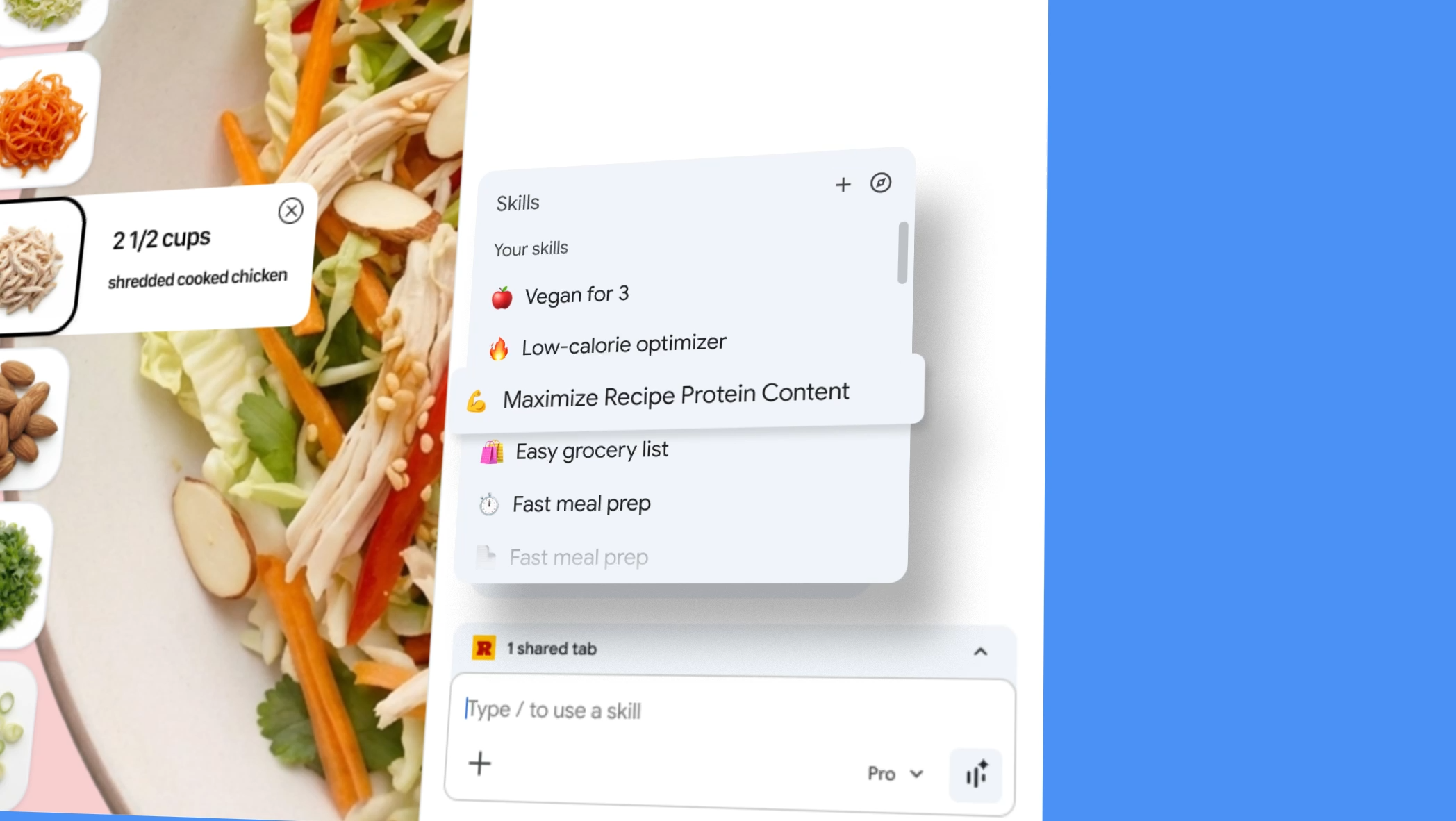
Google’s new Skills in Chrome feature lets you save any Gemini prompt as a reusable one-click tool inside the browser. Stop typing the same instructions every time you land on a new page. Now you can write the prompt once and save it as a Skill. You can trigger it on any page or across multiple open tabs with a single click. Skills launched on April 14, 2026, for Chrome desktop on Mac, Windows, and ChromeOS, and they sync across every signed-in device automatically.
3 Key Takeaways
- Skills in Chrome converts your best Gemini prompts into saved shortcuts so you never retype the same instruction twice.
- Each Skill runs across multiple open tabs at once, which means one saved prompt can pull and compare information from several pages in a single action.
- Google ships a prebuilt Skills library at chrome://skills/browse, organized by Shopping, Research, Learning, Writing, and Productivity categories, with over 50 ready-to-use workflows you can add and customize immediately.
Learn more: Turn your best AI prompts into one-click tools in Chrome
What are Skills in Chrome?
Skills in Chrome are saved Gemini prompts that run on whatever page — or pages — you’re viewing, triggered with one click.
Think of them as keyboard macros for AI. The moment you write a prompt that works well, you save it as a Skill, name it, give it an emoji, and it lives in your browser. Every time you need it, you call it up from the Gemini sidebar and it reads the active page automatically.
No copy-pasting, no retyping.
Google introduced Skills to go beyond one-off AI interactions by letting users create prompts that can be accessed time and again with just a click, running across different web pages without having to type them in again.
Before Skills existed, repeating an AI task across multiple pages meant going back through chat history, copying the prompt, pasting it into a new conversation, and starting over. Gemini will now encourage you to save Skills at the end of chats, which means the feature teaches you to build your library as you browse rather than requiring you to set everything up in advance.
Skills are not extensions or third-party add-ons. They sit natively inside Gemini in Chrome’s side panel, which means they read the current page’s content directly — you don’t paste any text yourself.
How to set up and use Skills in Chrome
Setting up a Skill takes under a minute. Here’s the exact process:
1. Open Chrome on your desktop — Mac, Windows, or ChromeOS — and sign into your Google account.
2. Click the Gemini icon in the Chrome toolbar to open the side panel.

Type any prompt you’d want to use again. For example: “List all the key ingredients in this recipe and flag anything that isn’t vegan.”

Wait for Gemini’s response, then save it as a Skill directly from your chat history.

Name it something you’ll recognize and add an emoji for quick visual scanning.

To use a saved Skill: type forward slash ( / ) or click the plus sign ( + ) button in Gemini in Chrome, select your Skill, and it will run on the page you’re viewing, along with any other tabs you select.
To manage all your Skills: type / in the Gemini sidebar, then click the compass icon. You can also go directly to chrome://skills/browse in your address bar to see the full prebuilt library.
Saved Skills sync automatically across all signed-in Chrome desktop devices. If you set one up on your work laptop, it’s available on your home desktop the same day.
One thing worth knowing: as of April 14, 2026, Skills is rolling out globally to Chrome desktop users, but only when Chrome’s browser language is set to English (US).
How to access Chrome skills in India and Europe?
Users in India, Europe, and other regions can technically access it by switching their browser language to English (US) in Chrome settings.
What’s in the Skills library — and how to use it as a starting point

Google offers a library of Skills at chrome://skills/browse for common tasks and workflows across Learning, Research, Shopping, Writing, and other categories. You can add any library Skill to your saved collection and edit the underlying prompt to customize it for your specific needs.
The library is useful for two reasons.
First, it shows you what’s possible — seeing a prebuilt Skill for cross-referencing a gift budget against a recipient’s interests across multiple tabs gives you a concrete model for how to write your own.
Second, you can remix any library Skill by editing the prompt. Start with Google’s template, swap in your own context or constraints, and save it as a personalized version.
In tests, Google found that early adopters used Skills in areas like health and wellness — for instance, to calculate protein macros in recipes — or for shopping comparisons or scanning and summarizing lengthy documents.
How to build Skills in Chrome for daily browsing — prompt ideas to get you started
The most useful Skills are the ones you’d otherwise write from scratch every single session. Below are practical prompt ideas organized by browsing context. Write each one in the Gemini sidebar, save it as a Skill, and reuse it across every relevant page.
Research and reading
If you spend time on dense articles, reports, or documentation, these Skills cut the time you spend summarizing and fact-checking.
Google Chrome Skills prompt to get summary of the page:
“Summarize this page in 5 bullet points and flag any claims that don’t have a cited source.” — useful on any news article or research summary where you want a quick read without committing to the full text.
Google Chrome Skills prompt to extract specific information:
“Extract every statistic mentioned on this page, note the source for each, and flag any with no attribution.” — useful for journalists or anyone who needs to verify data before using it.
Google Chrome Skills prompt to compare information across tabs:
“Compare the key arguments made across these tabs and list where they agree, where they contradict each other, and what’s missing from both.” — this is where the multi-tab capability pays off most. Run it across several open opinion pieces, product reviews, or news articles at once.
Google Chrome Skills prompt to scrape profile information (like LinkedIn)
“List every person, organization, and product mentioned on this page with a one-sentence description of each.” — good for quickly getting up to speed on an unfamiliar topic or article.
Shopping
The multi-tab feature makes shopping Skills particularly strong — load several product pages, run one Skill, and get a structured comparison without switching tabs manually.
Google Chrome Skills prompt compare product specifications across tabs:
“Compare the specs of the products across my open tabs. Present the comparison as a table with a column per product and a row per spec.” — a direct replacement for manually building a spreadsheet while shopping.
Google Chrome Skills prompt to get pros and cons of products
“List the pros and cons of this product based only on the information on this page. Do not invent information not present.” — the last instruction stops Gemini from filling in gaps with general knowledge rather than page-specific content.
Google Chrome Skills prompt to get specific info from a page during purchase:
“Check the ingredients list on this page. Flag anything that is: (a) an allergen, (b) a controversial additive, or (c) not what it claims to be based on its label description.” — useful for food, supplement, or skincare product pages.
Google Chrome Skills prompt to find products as per filters like budget
“My budget is [amount]. Based on the products across my open tabs, which gives me the best value? Explain your reasoning.” — a practical gift-shopping or purchase-decision Skill.
Google Chrome Skills prompt to track price signals while shopping:
“List every pricing detail mentioned on this page — base price, discounts, subscription tiers, and hidden fees. Flag anything that looks like a limited-time offer.” — useful when evaluating SaaS tools, subscription products, or deals pages where pricing is buried in the fine print.
Work and productivity
These Skills work best on documents, long-form articles, and pages with structured information like reports, meeting notes, or job postings.
Google Chrome Skills prompt to scan documents:
“Scan this document and extract all action items, deadlines, and responsible parties. Format as a checklist.” — run this on any lengthy document or meeting summary.
Google Chrome Skills prompt to summarize information:
“Write a 3-sentence summary of this page I can share with someone who hasn’t read it. Use plain language.” — a fast Skill for sharing articles with colleagues or adding context to a Slack message.
Google Chrome Skills prompt to format extracted information:
“Pull the key data points from each of my open tabs and organize them into a single table with a source column.” — useful for desk research, competitive analysis, or building briefing notes.
Google Chrome Skills prompt for job descriptions:
“Read this job description and list the 10 most important requirements in order of how prominently they appear.” — helpful when reviewing multiple job postings across tabs.
Google Chrome Skills prompt to extract contact and next-step information:
“Scan this page and pull out: every email address, phone number, form link, CTA button, and deadline mentioned. List them in order of appearance.” — useful on vendor pages, event listings, or any page where you need to act quickly and don’t want to miss anything buried in the copy.
Learning
These Skills work well on educational content, tutorials, documentation, and explainer articles.
Google Chrome Skills prompt to learn concepts
“Explain the main concept on this page as if I have no background in this field. Use a real-world analogy.” — the fastest way to get Gemini to translate technical documentation into plain English.
Google Chrome Skills prompt to learn Q and A style:
“List 5 questions I should be able to answer after reading this page. Then check whether the page actually answers all of them.” — a good comprehension check Skill.
Google Chrome Skills prompt to learn terminologies:
“Find every term on this page that requires specialist knowledge to understand. Define each one in one sentence.” — useful when reading academic papers, medical content, or technical documentation.
Writing
These Skills work well when you’re using reference pages as raw material for your own content.
Google Chrome Skills prompt to get quotes:
“Pull every direct quote from this page that could support an argument about [topic]. List them with one sentence of context before and after each.” — useful for writers sourcing research.
Google Chrome Skills prompt to rewrite statements:
“Rewrite the key argument on this page in plain English, in under 100 words, without losing the core meaning.” — a fast translation layer between dense source material and usable notes.
Google Chrome Skills prompt to audit a page before sharing it
“Check this page for: (a) factual claims with no source, (b) outdated statistics, (c) broken logic or contradictions in the argument. Give me a short verdict on whether this is worth sharing.” — useful before forwarding an article to a colleague or citing it in your own writing.
How Skills in Chrome compares to browser extensions for prompt management
Most browser extensions that save and replay prompts require you to paste page content manually, maintain a separate account, and switch between the extension and the browser. They work independently from the page you’re reading.
Skills in Chrome reads the active page’s content automatically. You don’t select text, you don’t copy and paste. Gemini already has access to the page through Chrome’s integration, and the Skill runs on top of that directly.
The multi-tab capability is also distinct — running a single saved prompt across several open pages at once is different from anything a standalone extension currently offers.
The other practical advantage is sync. Skills can be saved directly from the chat history in Chrome and recalled by typing a forward slash and the Skill name or clicking on the plus sign, with the selected Skill running on the page being viewed along with other selected tabs. Because everything lives in your Google account, switching devices doesn’t break your workflow.
Where extensions still have an edge: language availability and the depth of ecosystems like the GPT Store. Skills currently only works with Chrome set to English (US), while most prompt extensions work regardless of browser language.
What Skills in Chrome can and can’t do yet
Skills are a consumer productivity feature at launch. They’re not an API, not an enterprise tool, and not available on mobile. Current limitations worth knowing before you build a workflow around them:
- Desktop only — Skills work on Mac, Windows, and ChromeOS. No mobile version yet.
- English-US only at launch — the feature will initially work only if your Chrome browser’s language is set to English (US).
- Signed-in Google account required — Skills are tied to your account for sync and access.
- Sensitive actions need confirmation — a Skills prompt will ask for confirmation before taking certain actions, such as adding an event to your calendar or sending an email.
- No autonomous operation — Skills run when you trigger them. They don’t run in the background or act without you initiating.
- Free to use — no Google AI Pro or paid subscription is required.
What early users think about Skills in Chrome (Chrome Skills early reviews)
Here are some community reactions we came across:
How is Claude Skills different from Skills in Chrome?

Skills isn’t a concept Google invented — reusable prompt patterns have existed in coding agents and developer tools for a while. What’s different here is distribution: Chrome runs on more devices than almost any other software on the planet, which means a feature that developers already understand gets handed to everyone else at once. Whether everyday users actually pick it up is the open question.
Issue of replaying instructions without context

This gets at the core technical risk with Skills. A saved prompt works reliably when the content it runs on is consistent — like a codebase that doesn’t change shape between sessions. Web pages aren’t that. A Skill written for a recipe site may produce weak results on a news article. How well Chrome passes accurate, complete page context to Gemini each time will determine whether Skills feel dependable or hit-and-miss in daily use.
Shift from “AI as search box” to “AI as a toolset”

Skills solves AI’s retention problem by shifting the mental model — from a search box you visit once to a toolset you build and keep. That’s a meaningful product design move. The harder question it raises is about control: when Google owns both the browser and the prompt layer, they also shape which workflows feel natural and which don’t. That’s worth watching as the Skills library grows.
Google chrome skills shows agent-level patterns, without the agent-level complexity

Skills quietly packages three things that define how AI agents work — reusable instructions, multi-context execution, and human confirmation before action — into a browser feature that requires no technical setup. Tools like LangGraph and AutoGPT do similar things, but they require developers to build and configure them. Skills hands the same pattern to anyone with Chrome installed. The confirmation step matters more than it looks: it’s what stops the feature from feeling like something that acts on your behalf without you noticing.
A prompt library by another name?

The naming debate is legitimate. In AI development, a “skill” typically refers to a discrete capability an agent can call — something with defined inputs, outputs, and logic. What Google ships here is closer to a saved prompt template with a friendly label. That gap between the marketing term and the technical reality isn’t just semantic: it matters for users who expect Skills to behave like configurable tools rather than text shortcuts. Whether Google grows the feature to match the name remains to be seen.
Convenient for most users, redundant for the rest

For developers and power users already running open-source agents, Skills offers nothing new — the same outcome was already scriptable in a few lines. But that’s exactly the point Google isn’t targeting. Skills is built for the majority of Chrome users who will never write a script, configure an agent, or touch an API. The closed ecosystem trade-off is real, but so is the gap between what’s technically possible and what most people will actually do on their own.
The right problem to solve — if users can find it

This nails why browser-native AI makes more sense than a separate tab. The current workflow of leaving a page, explaining your context to an AI tool, then carrying the result back is slow and breaks focus. Skills collapses that into a single click without leaving the page. The real test is discoverability — a feature that lives behind a forward slash in a sidebar will only stick if enough users stumble across it early enough to build the habit. Google’s decision to prompt users to save Skills at the end of chats is clearly aimed at solving exactly that.
When AI stops being a tab you forget to open

This captures the adoption problem most AI tools haven’t solved. Opening a separate AI tab, re-explaining your context, and switching back is enough friction that most people just don’t bother. Skills removes that step entirely — the AI is already on the page, already reading it, and your saved instruction is one slash away. That’s the difference between a tool you use occasionally and one that becomes part of how you browse.
Simple by design, and that might be the whole point

The skepticism is fair — ‘one-click workflows’ is a lot of packaging for what is technically a saved text prompt. But the pragmatic concession at the end matters more than the critique. Consistent AI usage has always been the harder problem to solve than capability. If a well-named, well-placed prompt library inside the world’s most used browser gets ordinary people running AI tasks daily, the simplicity isn’t a weakness — it’s the strategy.
A valid critique aimed at the wrong audience

This argument makes sense if you already have a working AI stack. For power users running unified automation tools, adding another prompt-saving layer inside Chrome is genuinely redundant. But Skills isn’t designed for that user. It’s aimed at the much larger group who have no stack at all — people who use AI occasionally, inconsistently, and only when the friction is low enough. Solving for them isn’t stack bloat. It’s where mainstream AI adoption actually happens.
The skill Chrome users actually want

Fair point, and the timing lands. The screenshot shows Chrome pulling over 6GB of RAM across 42 processes — a running joke that predates Skills by about a decade. Adding an AI layer to a browser already known for memory appetite is a real concern for users on older or mid-range machines. Google hasn’t addressed the performance overhead of running Gemini in the sidebar alongside heavy tab loads, and that’s a gap worth watching as Skills adoption grows.
Action points — how to start using Skills in Chrome today
- Open Chrome desktop, sign into your Google account, and click the Gemini icon to open the side panel.
- Type a prompt you use repeatedly — something like “Summarize this page and list the 3 most important facts” — and wait for the response.
- After the conversation ends, save it as a Skill from your chat history. Name it clearly and add an emoji so it’s easy to scan when picking from a list.
- Go to chrome://skills/browse and spend five minutes in the library. Add two or three prebuilt Skills in categories you use most — Shopping and Productivity are the strongest starting points. Edit any Skill’s prompt to match your actual language and needs.
- The next time you’re on a page, type / in the Gemini sidebar, select a Skill, and run it. To apply it across multiple pages, click the + button to add open tabs before running.
- Build one new Skill per week from prompts you find yourself repeating. Within a month, you’ll have a browser that handles the repetitive parts of your workflow without any extra steps.
FAQs on Google Chrome Skills
What are Skills in Chrome?
Skills in Chrome are saved Gemini prompts that you trigger with one click inside the Chrome browser. Instead of typing the same instruction every time you visit a new page, you save it once as a Skill and run it on any page or across multiple open tabs.
How do I save a Skill in Chrome?
Open Gemini in Chrome’s side panel, type a prompt, and wait for the response. After the chat, you’ll see an option to save it as a Skill directly from your chat history. Name it, optionally add an emoji, and it’s saved and synced to your account.
How do I trigger a saved Skill in Chrome?
Type a forward slash ( / ) or click the plus sign ( + ) button in the Gemini sidebar. Your saved Skills appear as a list. Select one and it runs on whatever page you’re currently viewing.
Can I run a Skill across multiple tabs at once?
Yes. When you select a Skill to run, click the + button to add other open tabs. The Skill will read and process all selected pages in one action.
What is the Skills library in Chrome and how do I access it?
The Skills library is a collection of prebuilt prompts Google created for common browsing tasks. Access it by going to chrome://skills/browse in your Chrome address bar, or type / in Gemini and click the compass icon. Categories include Shopping, Research, Learning, Writing, and Productivity.
How many prebuilt Skills does the library have?
The library ships with over 50 prebuilt Skills organized across five categories. You can add any of them to your saved collection and edit the underlying prompt.
Can I edit a Skill after saving it?
Yes. You can edit any saved Skill at any time — both your own and ones added from the library. The underlying prompt is fully editable.
Are Skills in Chrome available on mobile?
No. As of launch, Skills only work on Chrome desktop — Mac, Windows, and ChromeOS. There is no mobile version yet.
Do I need a paid Google account to use Skills in Chrome?
No. Skills in Chrome are free and only require a standard signed-in Google account in Chrome.
What languages does Skills in Chrome support?
At launch, Skills only work when Chrome’s browser language is set to English (US). Other languages are not yet supported, though users in other regions can access the feature by switching their Chrome language setting manually.
How is Skills in Chrome different from prompt manager browser extensions?
Skills reads the active page’s content automatically — you don’t paste any text. It also runs across multiple open tabs simultaneously and syncs across devices through your Google account, which standalone extensions don’t do natively.
Will Skills take actions like sending emails without asking me first?
No. Skills ask for your confirmation before taking sensitive actions like sending an email or adding a calendar event, the same as other Gemini actions in Chrome.
How do I manage or delete saved Skills?
Type / in the Gemini sidebar and click the compass icon. From there you can view, edit, or delete any saved Skill.
Is there a limit to how many Skills I can save?
Google has not published a limit on saved Skills as of launch.
Does Skills in Chrome use my browsing data?
Skills use the same privacy and security framework as Gemini in Chrome, including automated red-teaming and Chrome’s layered protections. Skills prompts apply the same safeguards as standard Gemini in Chrome prompts.
Learn more on Google AI ecosystem on AppliedAI Tools:
- Google SynthID: How AI Watermark Impacts AI SEO in 2026
- Use NotebookLM Cinematic Videos To Transform Your Research [Review Round Up]
- Gemini Nano Banana 2 Reviews: Features for Creative Professionals
- Google Always On Memory Agent Ends AI Forgetfulness – Learn How
- How Universal Commerce Protocol (UCP) Enables AI Shopping (Google, Shopify)
- Google Photos AI: 6 Hacks With Gemini and Nano Banana
- NotebookLM Slide Decks: Reddit Reviews + Example Prompts
- Google Maps AI Tools Explained: Unlock 6 New Features Today
- Claim Free Gemini 3 via Jio Promo Offer in India – Free Deep Think + Nano Banana
- Google Releases LangExtract: Explained + Getting Started FAQs Solved
- Google Veo 3: Advanced AI for Filmmaking With Examples
- Google Cloud AI for McDonald’s – Risks and Customer Experience Efficiency
- Gemini 2.5 Pro Preview: Best AI Coding Tool For Developers
- NotebookLM Slide Decks: Reddit Reviews + Example Prompts
- Google NotebookLM – best AI research assistant for notes
- Learn NotebookLM For Beginners – 2025 Guide With FAQs Solved And Real Examples
Twice a month, we share AppliedAI Trends newsletter.
Get SHORT AND ACTIONABLE REPORTS on AI Trends across new AI tools launched and jobs affected due to AI tools. Explore new business opportunities due to AI technology breakthroughs. This includes links to top articles you should not miss.
Subscribe to get AppliedAI Trends newsletter – twice a month, no fluff, only actionable insights on AI trends:
You can access past AppliedAI Trends newsletter here:
This blog post is written using resources of Merrative. We are a publishing talent marketplace that helps you create publications and content libraries.
Get in touch if you would like to create a content library like ours. We specialize in the niche of Applied AI, Technology, Machine Learning, or Data Science.
Leave a Reply