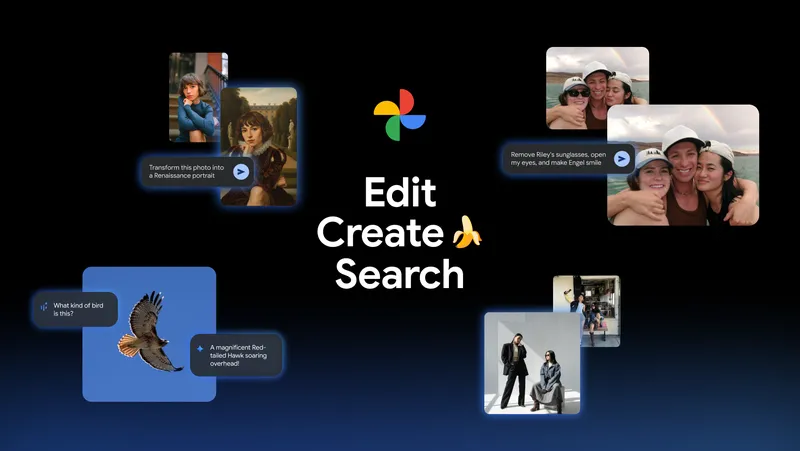
Google Photos has launched a major update introducing six new AI-powered tools. These Google Photos AI tools transform the app from a simple gallery into a creative editor and smart search engine. Powered by the Nano Banana image model and Gemini, these features allow users to edit photos using natural conversation. Users can reimagine images in new styles. They can also search their library with complex questions.
This update signifies a shift towards ‘conversational editing,’ making professional-grade tools accessible to everyone through simple text prompts.
3 Key Takeaways:
- Conversational Editing: You can now type requests directly in the editor. For instance, try ‘remove the photobomber’ or ‘make the sunset brighter.’ Use the new ‘Help me edit’ tool.
- Nano Banana Integration: Google’s advanced image model, Nano Banana, is now embedded in Photos. It allows users to stylize images into art. Users can also insert themselves into creative scenarios.
- Smarter ‘Ask Photos’: The search function has been upgraded. It now understands complex natural language queries. This feature is rolling out to over 100 countries.
‘Help Me Edit’: Conversational Photo Magic
Editing with Words, Not Sliders
The flagship feature of this update is “Help me edit.” It fundamentally changes the user interface from manual sliders to a text-based command center. Users no longer need to guess which combination of “saturation” and “contrast” will fix a photo. They can type natural instructions like “make it golden hour” or “remove the people in the background.” The tool can handle multiple requests in a single prompt.
For example, users can ask, “remove reflections and brighten the subject.” This streamlines what used to be a multi-step workflow into a single, automated action.
For example, you can type:
- “Improve lighting on the face.”
- “Remove the yellow tint.”
- “Turn this into a watercolor painting.”
- “Adjust the background blur.”
Simplifying Complex Fixes
This tool goes beyond basic filters by using semantic understanding to identify specific elements within the image structure. The AI manages the complex pixel-level adjustments. It can fix the lighting on a specific face. It can also automatically align a crooked horizon. The user provides the high-level creative direction. It even uses data from your private face groups. This ensures that edits like “opening eyes” look realistic. These edits accurately resemble the person in the photo.
Nano Banana and AI Templates: Reimagine Your Photos
Reimagining Reality

Google has integrated its Nano Banana image model directly into the Photos app. This model powers the “Reimagine” feature. It allows users to completely transform the aesthetic of an image.
For example, users can turn a standard park photo into a “Renaissance painting.” They can also transform it into a “colorful mosaic” while keeping the main subject intact.
One-Click Creativity with Templates

For users who don’t want to type prompts, Google introduced AI Templates within the new “Create” tab. These ready-made style presets let users instantly apply complex generative themes without crafting a prompt from scratch. Users can select options like “Put me in a high-fashion photoshoot.” They can also choose “Create a professional headshot.” The AI will intelligently blend the user’s photo with the chosen style. It will automatically handle lighting and composition.
‘Ask Photos’: The Next Evolution of Search

Beyond Keywords
The search bar in Google Photos is receiving a massive intelligence boost with the “Ask Photos” feature. It moves beyond simple keyword matching to full contextual understanding. Users can now ask complex, multi-layered questions. For example, they can say, “Show me the best photo from each national park I’ve visited.” The AI will parse the request, find locations, rank photo quality, and present a curated list.
“Using the latest Gemini models, Ask Photos can understand the context of your photo gallery. It recognizes the most important people in your life, your hobbies, and your favorite foods. It can pull out relevant details to help you find specific memories.”
— Shimrit Ben-Yair, Vice President, Google Photos [Source : TimesOfIndia]
Learn more: We’re improving Ask Photos and bringing it to more Google Photos users.
Global Rollout and Languages
Recognizing its diverse user base, Google is rolling out this feature to over 100 countries and supporting 17 languages immediately. This expansion ensures that users can query their memories in their native language. They can ask for “photos of my cat in a Christmas hat” or “dinner in Paris.” This feature makes the tool accessible to millions more people worldwide.
Learn more: Ask Photos is rolling out to more countries and languages
Trust and Transparency: Labeling AI Content
Invisible Watermarking
As generative AI becomes more realistic, distinguishing between a real photo and an AI-edited one is critical. Google has addressed this by implementing SynthID. It is an invisible digital watermark embedded directly into the pixels of images edited with tools like “Reimagine.” This allows systems to detect AI-generated content even if the metadata is stripped. It ensures identification even if the image is cropped. This provides a layer of security against deepfakes.
Visible Credits and Metadata
Google Photos will show plain-language notifications within the app’s “Image Details” section. This informs users when a photo has been modified using generative AI. This is also alongside invisible markers. The platform also supports C2PA standards. It ensures the provenance (origin) of the media remains traceable. This helps combat misinformation. It also protects the integrity of personal memories.
Learn more: How we’re bringing AI image verification to the Gemini app
Eligibility and Access: Who Gets These Features?
Device and Cloud Requirements
While the new features are rolling out broadly, there are specific hardware and subscription tiers to consider. The advanced generative editing tools are optimized for Pixel devices (Pixel 9 series) and high-end Android phones. However, they are also expanding to iOS users in the U.S. Non-Pixel users need a Google One subscription. To access the full suite of ‘Magic Editor’ and generative features, a 2TB+ plan is generally required. This unlocks unlimited saves and advanced processing.
The ‘Create’ Tab Availability
The new “Create with AI” section houses the Nano Banana-powered templates. It is initially launching on Android devices in the U.S. and India. This regional rollout strategy leads to delays for users in other markets. They see a delayed arrival of specific template features on different operating systems. These features arrive later compared to the core editing tools.
Learn more: Edit your photos
User Sentiment: What People Think About Google Photos AI
Practical Utility vs. Hype
Early adopters have shared detailed feedback on the capabilities of the new editing tools. While some find the automated adjustments helpful, others note clear limitations in consistency.

“From my experience it adjusts lighting and color and it does Ai enhance blurry old photos usually faces and also straighten and align the horizon. On some pictures it presents you with different cropping options but the most important thing to note it never replaces the original.”

“I’ve noticed the AI enhancement works best on environments and the worst on people and animals.”
Ethical Concerns and Availability
The “Reimagine” features have sparked a debate about the authenticity of photography. Some users are pushing back against the idea of altering memories. Additionally, the staggered rollout has caused frustration among international users.

“Make Riley look like she was having a good time.”
“Remove the despair and dread found in Riley’s facial expression.”
Stop pushing fake memories, Google.
Another user raised global availability concerns:

“Are you a global company? Really getting very tired of this US only thing.”
Action Points – How to Use Google Photos AI Effectively
Here are some steps you can take to start exploring these new features:
1. Start with the Help Me Edit tool for foundational corrections
Start your editing process with natural-language improvements like “fix lighting,” “reduce yellow tint,” or “sharpen the background.” This step gives you a clean, balanced image before applying more advanced transformations.
Example:
If you’re editing a dimly lit indoor photo, first ask:
“Improve brightness and reduce grain.”
This will give you a cleaner base for later stylization.
2. Apply AI Templates for quick social-ready outputs
Once your base edit looks good, open AI Templates and try themes like “professional headshot” or “holiday card.” Templates are designed for consistency. This is useful if you’re preparing a set of images for social media. It is also beneficial for marketing purposes.
Pro Tip:
Try 2–3 templates and compare all variations since Photos keeps originals, it’s safe to explore styles before choosing one.
3. Use Nano Banana for creative restyles, but test on duplicates
Nano Banana’s artistic transformations can be dramatic. For important memories or portraits, duplicate the photo first so you can compare artistic versions against the realistic version later.
Suggested edits:
- “Make this a Renaissance portrait.”
- “Turn this into a comic strip.”
- “Create a mosaic version.”
This also helps avoid unintentional distortion of facial expressions.
4. Use Ask Photos to quickly find images for projects
Ask Photos is ideal when you need to gather photos for an album, video, or collage. Instead of scrolling chronologically, search using natural descriptions.
Try queries like:
- “Photos of mom smiling at the beach.”
- “Pictures of our dog wearing red clothes.”
- “Selfies I took in 2021.”
This search step is especially helpful before creating a video remix.
5. Use the Create tab to produce video remixes for events
Once you gather a set of images, use Create → Photo-to-video remix. The tool will apply motion effects, transitions, and music to generate fast highlight reels.
Use it for:
- Birthday recaps
- Travel reels
- College memories
- Family events
- Social media introductions
You can refine the soundtrack and pacing after the first auto-generation.
6. Compare and export all versions as originals are always safe
Before finalizing your edits, swipe through:
- Original
- Help me edit the version
- Template versions
- Nano Banana artistic versions
- Video remix output
Pick the most natural or most creative, depending on your use case. Since Google Photos preserves originals, you can redo the process later with different styles.
7. Organize AI-edited images into albums for faster reuse
If you frequently generate social content or marketing visuals, create albums like:
- “Edited – Portraits”
- “Edited – Product Shots”
- “Edited – Social Media”
This keeps your AI outputs organized and easy to repurposed.
FAQs
Can I use AI in Google Photos?
Yes, the six new tools bring full AI editing, remixes, and search using Gemini models. You can edit via Help me edit, apply Templates, restyle with Nano Banana, and use Ask Photos for natural-language search.
Which new features are available in Google Photos?
Features include conversational editing, AI Templates, restyling with Nano Banana, automated video creation, and Ask Photos search. These tools simplify everything from color correction to full artistic transformations.
How do I use AI to edit photos in Google Photos?
Open Photos → choose a picture → tap Edit → tap Help me edit → type your request. The AI suggests edits and applies them non-destructively so your original stays safe.
What is the AI enhance feature in Google Photos?
AI enhancement covers lighting adjustments, color corrections, and texture cleanup. It also includes horizon straightening and de-noising. These enhancements are typically applied when you request “Improve this photo” or similar prompts.
How to use Ask Photos in Google Photos?
Tap the search bar and describe the photo you want in plain language, like “photos of a dog in a red sweater last winter.” Ask Photos uses AI to match your description across your entire library.
What is the AI feature in Google Photos Create tab?
The Create tab now includes photo-to-video remixes. It applies motion effects, transitions, and music. These enhancements produce quick highlight videos from your photos.
Is Google Photos AI free?
Yes, during rollout, the features are accessible without a paid subscription. However, some regions or premium-quality outputs may connect to Google One.
Does Google Photos search use AI?
Yes, Ask Photos is fully AI-driven. It uses Gemini models to interpret natural-language queries. Examples include “photos of sunset at Manali” or “birthday pictures with blue cake.”
How do I change the language in Google Photos?
Google Photos uses your device’s system language. Changing your phone or web account language updates Ask Photos’ understanding and interface.
How to reimagine a photo in Google Photos?
Use the “Reimagine” tool (powered by Nano Banana) in the editor. You can type a prompt or select a style. This will transform the image’s appearance.
Further Reading
Explore more about Google Photos AI:
- Google Photos – Official Nano Banana Overview
- Conversational Editing – Google’s Blog
- Photo-to-Video Remix – Google
More about Google AI on AppliedAI Tools:
- NotebookLM Slide Decks: Reddit Reviews + Example Prompts
- Google Maps AI Tools Explained: Unlock 6 New Features Today
- Claim Free Gemini 3 via Jio Promo Offer in India – Free Deep Think + Nano Banana
- Google Releases LangExtract: Explained + Getting Started FAQs Solved
- Google Veo 3: Advanced AI for Filmmaking With Examples
- Google Cloud AI for McDonald’s – Risks and Customer Experience Efficiency
- Gemini 2.5 Pro Preview: Best AI Coding Tool For Developers
We will update you more about such AI news and guides on using AI tools, subscribe to our newsletter shared once a week:
This blog post is written using resources of Merrative. We are a publishing talent marketplace that helps you create publications and content libraries.
Get in touch if you would like to create a content library like ours. We specialize in the niche of Applied AI, Technology, Machine Learning, or Data Science.
Leave a Reply