OpenAI has officially rolled out its ChatGPT Projects feature to all users globally, including those on the free plan.
This move unlocks a powerful organizational tool that was formerly reserved for paid subscribers. It transforms how you can manage long-term and complex tasks within the AI chatbot.
ChatGPT Projects gives you dedicated workspaces to group related chats, files, and instructions. It helps create a focused and context-aware environment for everything from research papers to marketing campaigns.
Key Takeaways
- ChatGPT Projects Free for everyone: The powerful chatgpt project feature, once a premium perk, is now available to all users. This democratizes access to better AI workflow management, regardless of your subscription status.
- A Smarter Workspace: Projects are more than just folders. They act as intelligent containers that hold your chats. They keep reference files like PDFs and spreadsheets. Specific instructions are included together. This ensures ChatGPT stays on-topic and delivers more relevant responses.
- Context is King: By uploading files and setting project-specific instructions, you give ChatGPT the necessary background information. This “context” is essential for your tasks. This leads to higher-quality, more consistent outputs tailored to your specific needs.
What are ChatGPT Projects?
If your ChatGPT history is a long, scrolling list of unrelated conversations, you already understand the problem Projects was built to solve.
Instead of starting fresh with every new query, Projects provides a persistent, organized space for ongoing work. Think of it as a dedicated digital workbench for each of your major tasks.
You can access ChatGPT Projects on the side panel within the app:
Each project is built on three core pillars:
A dedicated chat container:
This lets you group multiple conversations related to a single topic. For example, a “Novel Writing” project might contain separate chats for brainstorming characters, outlining chapters, and drafting dialogue.
Integrated file repository:
You can upload source materials directly into your project. Free users can add up to 5 files, while paid users get higher limits. You can upload up to 10 files at a same time.
- Free: 5 files per project
- Go, Plus, Edu: 25 files per project
- Pro, Business, Enterprise: 40 files per project
This is a game-changer for tasks that need specific knowledge. You can upload a technical manual to ask questions about it. Or add a brand style guide to guarantee consistent marketing copy.
Project-specific instructions:
This powerful feature lets you give ChatGPT a unique set of rules for each project. These rules override your global custom instructions. You can tell it to “act as a formal academic editor” for your thesis project. Or you can “adopt a witty and casual tone” for your social media content project. This ensures the AI’s persona and output style are perfectly matched to the task at hand.
How to get started with ChatGPT Projects?
Getting your first ChatGPT project up and running is straightforward. Follow these steps to create an organized and efficient workflow to use ChatGPT as a true chatgpt project maker:
Step 1: Create your project

In the ChatGPT sidebar on the left, click the dropdown menu and select “Projects”.

Give your project a clear, descriptive name (e.g., “Q4 Marketing Campaign” or “AP Biology Study Guide”).
You can also assign a unique color and icon to make it easy to spot in your workspace.

You can also choose how ChatGPT access memory via the settings option on top right of the dialog box:

Click on ‘Create Project’ once you are done adjusting the basics mentioned above. I have created a ‘AI Papers Explained’ Project as an example.
Step 2: Add your context with files and instructions
Once created, open your project and add your foundational materials. For this, on the top right – click on ‘Add Files’ to get this dialog box:

Upload files:
Click the paperclip icon to attach relevant documents, spreadsheets, images, or PDFs. This is where you give the raw information ChatGPT will work with. For our example, I have added an AI research paper on Multimodal Chain of Thought.
Set instructions:

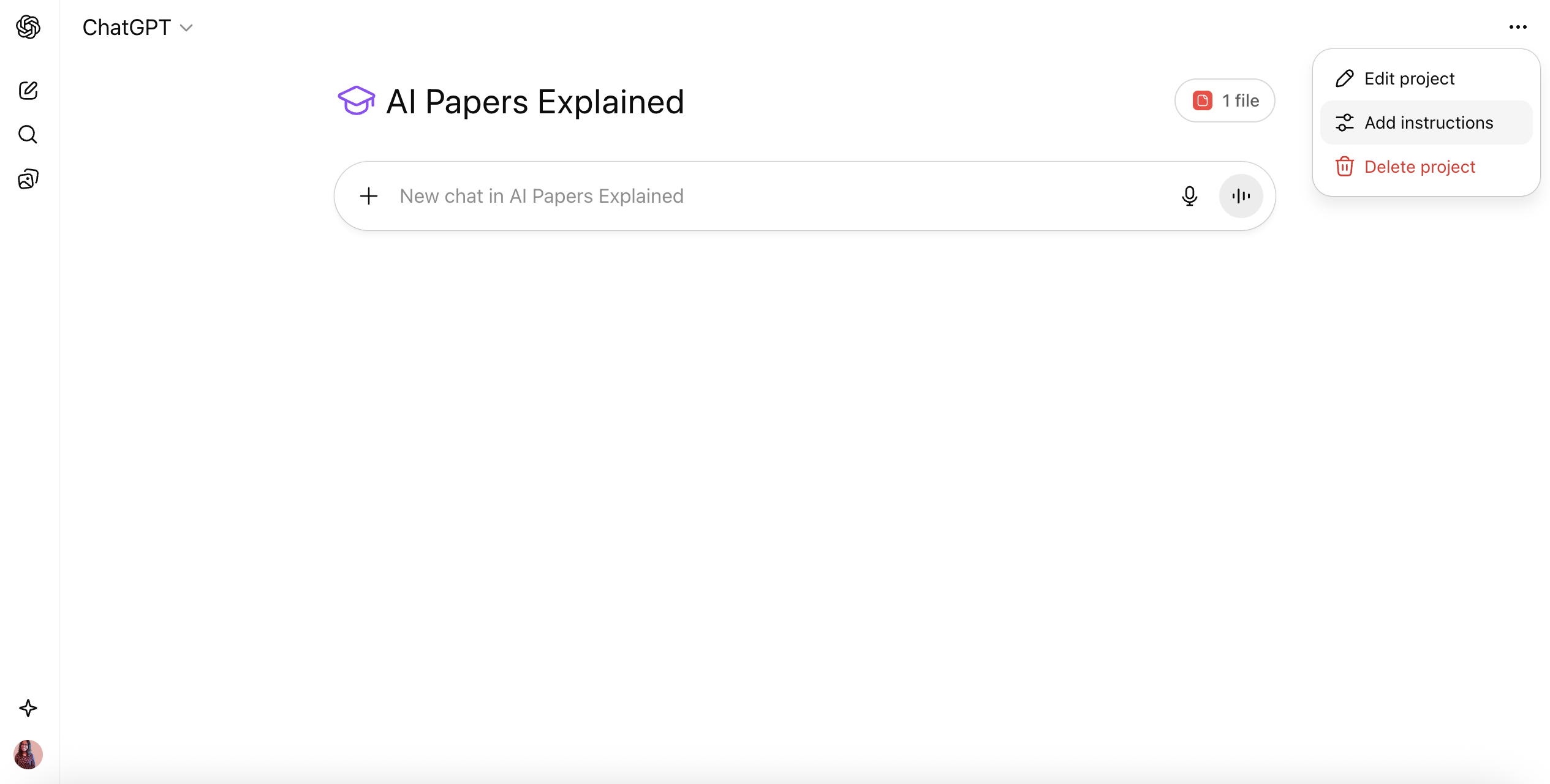
Click “Add project instructions” available as an option in the 3-dot dropdown. This helps define the rules for this specific workspace. This is where your Chatgpt project instructions live. Be specific.
For example, for a coding project, you might instruct it to “Always provide code comments in Python and explain the logic behind each function.”
For our AI Papers Explained project, I have added some content guidelines:

Step 3: Organize your workspace

You can start new chats within the project, and they will automatically use the files and instructions you’ve provided. To bring in past work, find an existing chat in your history. Click the three dots. Then select “Move to project” to add it to your new workspace.

How to use ChatGPT Projects in practice?
So, can I use ChatGPT to write my project?
Absolutely.
The Projects feature is designed for exactly that. Here are a few examples of how different users can leverage this tool.
For content creators and marketers
Imagine you’re launching a new product. You can create a project and upload your market research report, customer personas, and brand voice guidelines. Then, you can run separate chats to:
- Brainstorm blog post ideas.
- Draft ad copy tailored to different customer segments.
- Generate a social media content calendar.
- Write email marketing sequences.
The AI’s ability to reference your uploaded files ensures every piece of content is consistent and on-brand.
For students and researchers
A project can serve as a centralized hub for an entire academic paper or course. Upload lecture notes, academic articles, and your syllabus. Use different chat threads to:
- Summarize complex research papers.
- Generate practice quizzes to test your knowledge.
- Outline your essay structure.
- Get help with citations and formatting.
For everyday planning
Projects aren’t just for professional work. Use them to organize personal tasks like planning a vacation. Upload your flight confirmations, hotel bookings, and a list of potential attractions. Use chats to create a day-by-day itinerary, get restaurant recommendations, and even ask for translations of common phrases.
You can find many tutorials videos no YouTube adapting ChatGPT projects for their use case, for example:
ChatGPT projects free vs. paid limits
The core ChatGPT Projects free feature is incredibly generous. However, there are key differences between the tiers that primarily concern file uploads:
- Free Users: Can create unlimited projects and upload up to 5 files per project.
- Plus/Edu Users: Can upload up to 25 files per project.
- Pro/Business/Enterprise Users: Can upload up to 40 files per project.
This tiered system allows free users to experience the full organizational power of Projects. It also offers a clear incentive for power users who work with large volumes of data, are encouraged to upgrade.
What is the difference between ChatGPT projects vs. custom GPTs?
A common question is how Projects differ from Custom GPTs. The easiest way to think about it is “Container vs. Agent.”
- Projects are Containers. They are private, personal workspaces designed to help you organize your own work. You can’t share a Project with others. Use a Project for your personal research, writing, or planning.
- Custom GPTs are Agents. They are specialized, shareable AI tools you build for a specific purpose that can be used by you or others. Use a Custom GPT to create a “Customer Service Response Bot” for your team. You can also develop a “Code Review Assistant” to share with colleagues.
ChatGPT Projects vs Claude Projects — features and use case comparison
Both ChatGPT Projects and Claude Projects offer robust ways to organize and manage multiple AI chats. They improve response accuracy with custom instructions and uploaded files. They also support collaborative work. Each excels in different areas, making them ideal for distinct user needs.
ChatGPT Projects vs Claude Projects – features compared
| Feature | ChatGPT Projects | Claude Projects |
|---|---|---|
| Access & Pricing | Free, Plus, Pro, Team and Enterprise tiers | Pro & Team tiers (paid) |
| File Uploads per Project | Free: 5, Plus: 25, Pro/Ent: 40 | Typically large (up to 1 million tokens context) |
| Context Window | Up to 128,000 tokens (Pro/Enterprise) | Up to 1,000,000 tokens (Sonnet 4) |
| Collaboration | Share chats, organize team workspaces | Share projects, team activity feed |
| Custom Instructions | Project-level memory, instructions | Project-level instructions and workspace |
| AI Models Available | GPT-5, 4o, 4.5, model selection | Claude Opus 4, Sonnet 4, Haiku 3.5 |
| Web Search | Yes (all tiers) | Yes with certain models ([Opus/Sonnet 4] extended thinking) |
| Image Generation | Yes (DALL·E 3) | Charts & notes, but not generative images. |
| Artifacts/Visual Output | Canvas, branch chat, upload, multimodal | Artifacts: code, documents, diagrams preview. |
| Cross-Platform | Web, Android, iOS | Web |
When to use ChatGPT Projects?
- Best for: Dynamic research, marketing, education, and collaborative creative work.
- Why: Free access, real-time web search, image generation, customizable workspace, and multi-model options make it an ideal productivity hub. It serves both individual and team users. They need quick data, insights, and advanced output formats.
- Standout features: Cross-device syncing, conversation branching, canvas, and easy project setup for recurring or long-term projects.
ChatGPT Projects is ideal for users who need real-time internet access and advanced features like image/canvas tools. Great for marketing, research, or content teams who value up-to-date answers and easy integration of visuals into workflows.
Also suited for those who want to organize many chats and expect using the free tier in the future.
When to use Claude Projects?
- Best for: Large-scale document analysis, deep reading, writing, technical research, or software/code review.
- Why: It offers an immense context window, accommodating up to 1 million tokens. It provides superior summarization and precise memory management. These features empower technical teams and analysts to tackle long text, knowledge bases, or codebases in a single project.
- Standout features: Artifacts workspace for side-by-side code and document previews, team feeds for collaboration, and advanced models for extended reasoning.
Claude Projects is ideal for users focused on writing, creative work, or empathetic, human-like responses. The Claude 3.5 Sonet model is preferred for more natural writing, and the project knowledge interface is transparent and user-friendly.
Helpful for agencies or collaborators who want clear file management, custom writing styles, and smoother knowledge navigation in team environments.
Frequently Asked Questions (FAQs) Solved on ChatGPT Projects
Does ChatGPT have projects?
Yes. The Projects in ChatGPT feature is now available globally for all users, including those on the free plan.
Are ChatGPT projects only for Plus?
No. As of September 2025, Projects are available for ChatGPT Projects free users. Paid plans like Plus, Pro, and Enterprise offer higher file upload limits.
What is the main benefit of the ChatGPT project feature?
It lets you create a dedicated workspace that keeps your chats, files, and instructions together. Doing so helps the AI give more accurate and context-aware responses for long-term or complex tasks.
Can I use ChatGPT to write my project?
Yes. Projects are ideal for writing tasks. You can upload your research, notes, and outlines to help ChatGPT help with drafting, editing, and refining your work.
How many files can I upload in the free version for ChatGPT projects?
Free users can upload up to 5 files per project.2
Can I share my ChatGPT project with my team?
No, Projects are currently for individual use only and can’t be shared or collaborated on.8 For shareable AI tools, you should create a Custom GPT.
How do I move an old chat into a ChatGPT project?
Find the chat in your history, click the three-dot menu next to its name, and select “Move to project.”
What is “project-only memory” in ChatGPT?
This is an optional setting that isolates your project’s context. When enabled, chats within the project will only reference other conversations and files inside that same project. This prevents information from your general chat history from influencing its responses.
Do project-specific instructions affect my other chats in ChatGPT?
No. Instructions set within a project only apply to chats inside that project. Your global custom instructions stay untouched for all other conversations.
What kind of files can I upload on ChatGPT project?
You can upload a wide variety of files, including PDFs, spreadsheets (CSV, XLSX), documents (DOCX), and images (JPG, PNG).
Is there a limit to how many projects I can create in ChatGPT?
No, all users can create an unlimited number of projects.4
How is a Project different from a regular chat in ChatGPT?
A regular chat is a single, standalone conversation. A Project is a larger container that can hold multiple chats. It includes reference files and a unique set of instructions. This setup maintains context across all of them.
Will my data from ChatGPT Projects be used for training?
For free users, your data may be used to train models. This occurs if you have the “Improve the model for everyone” setting enabled. For Business, Enterprise, and Edu customers, project data is not used for training by default.
Can I use tools like Canvas or Image Generation inside a ChatGPT Project?
Yes, Projects support the same built-in tools available in regular chats, including Canvas, Image Generation, Voice Mode, and Web Search.
Leave a Reply