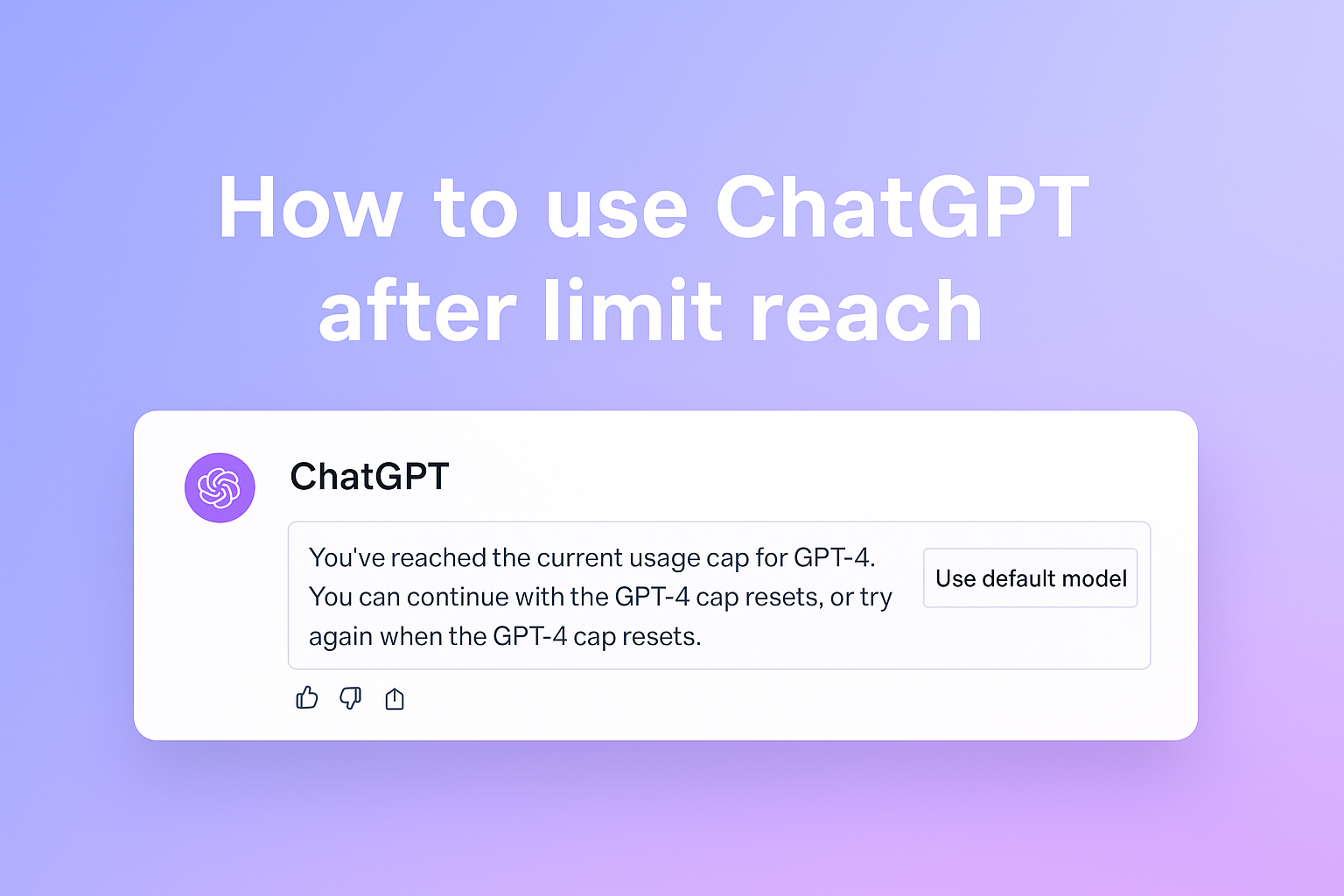
In this guide, we will show you hacks on how to use ChatGPT after it reaches its limit. Understand why ChatGPT hits limit and follow a simple trick to keep your chat going.
You are in the middle of a great conversation with ChatGPT. You are learning something new or writing a long story. Suddenly, everything stops. You see a red error message that might say, “You’ve reached our limit of messages per hour ChatGPT” or “You’ve reached the maximum length for this conversation.”
It is frustrating, right?
But don’t worry.
This does not mean you are banned. It just means you hit a temporary wall. The good news is that there are easy ways to get around these walls without losing your work. Keep reading.
3 Key Takeaways:
- Use ‘Branching’ to Fix Length Limits: If you hit the “maximum length” error, do not start a brand new chat. Starting a new chat loses your context. Instead, scroll up to an earlier message, click the three dots, and select ‘Branch in a new chat.’ This keeps your history while resetting the memory limit.
- Switch Models to Bypass Usage Caps: If you reach the message limit (e.g., for GPT-4o), you don’t have to stop working. Simply switch the model to GPT-4o mini using the selector at the top of the chat. This lighter model often has unlimited or much higher limits.
- Stretch Your Limits with ‘Bulk Prompting”: To avoid hitting limits in the first place, combine multiple questions into one long message. This is better than sending several short ones. Since limits are based on the number of messages sent, one long message uses fewer credits than five short interactions.
Why is ChatGPT Saying I Reached My Limit?
First, we need to understand the problem. There are two main types of limits you might see.
1. The Conversation Length Limit

This happens when you talk in one single chat for a very long time. Imagine writing on a piece of paper. Eventually, you run out of space.
- The Error: “You’ve reached the maximum length for this conversation.”
- What it means: The chat history is too full for the AI to remember everything.
- The Fix: You need to “branch” the chat (we will show you how below).
2. The Usage Limit (Messages Per Hour)

Source: Youtube
This happens when you send too many messages too quickly.
- The Error: “You’ve reached our limits of messages please try again later” or “You have reached your limit for GPT-4o.”
- What it means: You used up your allowance of “smart” messages for a few hours.
- The Fix: Switch to a lighter model or wait for the ChatGPT limit reset.
How to Fix the ‘Maximum Length’ Error in ChatGPT?
If you see the error about the “maximum length for this conversation,” you might think you have to start a brand new chat. But if you do that, ChatGPT will forget everything you just talked about.
You presumably don’t want to lose your specific history and context. Fortunately, there is a hidden feature called “Branching” that saves the day.
Here is the step-by-step guide to fixing it:
Step 1: Don’t Delete Anything
Stay in the chat where you got the error. Do not delete it.
Step 2: Scroll Up
Go back to one of the earlier responses from ChatGPT in that same chat.
- Tip: Don’t pick the very last message where the error happened. Go up a few messages before that.
Step 3: Click the Three Dots
Look at the bottom of that old response. You should see a small icon that looks like three dots or an edit button. Click on it.
Step 4: Branch the Chat

A menu will pop up. Look for an option that says “Branch in a new chat” (or sometimes just an edit icon that lets you “Save & Submit”).
- Click that option.
Step 5: Continue Chatting

This will instantly open a new chat window.
This new chat keeps all the memory and history from your old chat up to that point. You have a “refreshed limit.” You can now continue the same things you were doing, but the error message will be gone.
How to Use ChatGPT After Limit (Usage Cap)?
If your error is “You’ve reached our limit of messages per hour,” the “Branching” trick won’t work. This is because your account itself is on a “timeout” for the smart model.
Here is how to skip ChatGPT limit blocks when this happens:
Method 1: Switch Models (The Best Fix)

If you are using the smartest version (like GPT-4o), you have a limit (e.g., 40 messages every 3 hours). When you hit this, you can usually switch to the GPT-4o mini model.
- How to do it: Look for the model switcher at the top of the chat. Select “GPT-4o mini” or “GPT-3.5”.
- Why it works: These “mini” models are lighter and often have unlimited or much higher limits. You can keep chatting immediately.
Method 2: Edit Your Prompts

If you are running out of messages quickly, try to combine your questions.
Instead of sending 5 short messages (“Hi,” “Can you help?”, “I need a recipe,” “For cake,” “Chocolate”), send one long one.
One long message only counts as one usage credit. Five short ones count as five credits. This helps you avoid the ChatGPT message limit per hour bypass issue entirely.
Limitless Logic: 4 Strategic Hacks to Save Credits on ChatGPT
Don’t just wait for the error message. Use these pro strategies to stretch your message allowance further so you never hit the wall in the first place.
Avoid the ‘Regenerate’ Trap:
Did you know that clicking ‘Regenerate’ counts as a brand new message?
If an answer is mostly right, don’t regenerate it.
Instead, use a follow-up prompt to fix just the specific part that is wrong. This saves your high-quality model credits for when you really need them.
Practice ‘Model Triage’:
Don’t waste your limited GPT-4o messages on simple tasks like “Write an email to my boss” or “Fix this typo.” Manually switch to the GPT-4o mini model for the easy stuff. Save the powerful model for complex coding, image analysis, or creative writing.
The Bulk Prompt Technique:
Every time you hit “Send,” it counts against your limit.
Instead of sending three short questions (“What is the capital of France?”, “What is the population?”, “What is the currency?”), combine them into one mega-prompt. This gets you all the answers using only one message credit.
Watch Out for Voice Mode:
If you use the mobile app’s Voice Mode, be careful. Every single sentence you speak and every reply the AI gives counts as a message exchange. A casual 5-minute chat can burn through your entire 3-hour limit without you realizing it.
Frequently Asked Questions (FAQs)
How to use ChatGPT after the limit?
If it is a length limit, scroll up to an old message, click the three dots, and select “Branch in a new chat”. If it is a usage limit, switch your model from GPT-4o to GPT-4o mini to keep chatting for free.
Why is ChatGPT saying I reached my limit?
This happens for two reasons. Your specific chat conversation might have become too long for the AI to remember. This is called a memory limit. Alternatively, you may have sent too many messages in a short time period, resulting in a rate limit.
How to skip the ChatGPT limit?
You can’t “hack” the limit, but you can work around it.
- Branch the chat to fix length errors.
- Switch models to GPT-4o mini to fix message cap errors.
- Combine questions into one big message to save credits.
Does the ChatGPT limit apply to all users?
Yes. Both Free and Plus users have limits. But, Plus users have much higher limits than Free users. Even Enterprise (business) users have some limits on how much text the AI can process at once.
What happens when I hit my ChatGPT limit?
If you hit the rate limit, the AI will stop responding to the smart model (GPT-4o). It will ask you to switch to the basic model or wait. If you hit the conversation length limit, it will ask you to start a new chat.
If I delete a message, do I get my limit back in ChatGPT?
No. Once a message is sent and processed by the AI, the “credit” is used. Deleting the chat history does not refund that usage. You still have to wait for the rolling time window to pass before you get that message back.
Does using Custom GPTs affect my limit?
Yes. When you use a specialized “Custom GPT” (like a coding bot or a creative writer bot), it usually runs on the top-tier model (GPT-4o). Therefore, chatting with these bots shares the same limit as your main chat. If you use up your messages on a bot, you will be limited on the main chat too.
When exactly does the limit reset in ChatGPT?
It is not a fixed time (like “every day at midnight”). It is a “rolling window.” If your limit is 10 messages every 3 hours, and you send 1 message at 1:00 PM, you will get that 1 message credit back at 4:00 PM. It restores your allowance gradually over time, not all at once.
Do ChatGPT “Team” or “Enterprise” paid plans have limits?
Yes, even paying big money doesn’t give you infinite access to the smartest models. But, Team and Enterprise plans have significantly higher caps (often 2x or more than the Plus plan). Only the standard “Mini” models are usually unlimited for these users.
Can I just log in with a different device to bypass the ChatGPT limit?
No. The limit is tied to your account, not your device. Switching from your laptop to your iPhone won’t work because the system knows it is still “you.” The only way to bypass it is to switch models or use a different account entirely
Check out more ChatGPT Hacks on AppliedAI Tools
Make the most of ChatGPT for your personal or workplace productivity:
- How to Use ChatGPT Without SignUp [Privacy Tips]
- ChatGPT for Daily Morning Routine Cheat Sheet
- How to Use ChatGPT with Canva for Instant Designs
- 4 ChatGPT Prompts To Find Discount Coupon Codes
- Learn English Using ChatGPT — Free AI Language Tutor
- How to Make ChatGPT Forget Memory?
- ChatGPT For Free Personal Color Analysis – Prompts and GPTs
- How to use ChatGPT on WhatsApp in 3 steps
- How To Digitize Handwritten Notes with ChatGPT For Free
- Claim ChatGPT Go Free in India: Features and Reviews
- 5 ChatGPT Parental Controls: OpenAI Age Detection Tech Explained
- How OpenAI Critterz Makes Filmmaking Accessible To Independent Animators
- Use ChatGPT Projects Feature For Free [Tutorial with Example]
- Best AI Browsers: Free Comparison Business Analysis Report
- ChatGPT Search Upgrade: Shopping Without Login
Twice a month, we share AppliedAI Trends newsletter.
Get SHORT AND ACTIONABLE REPORTS on AI Trends across new AI tools launched and jobs affected due to AI tools. Explore new business opportunities due to AI technology breakthroughs. This includes links to top articles you should not miss, like this ChatGPT hack tutorial you just read.
Subscribe to get AppliedAI Trends newsletter – twice a month, no fluff, only actionable insights on AI trends:
You can access past AppliedAI Trends newsletter here:
This blog post is written using resources of Merrative. We are a publishing talent marketplace that helps you create publications and content libraries.
Get in touch if you would like to create a content library like ours. We specialize in the niche of Applied AI, Technology, Machine Learning, or Data Science.
Leave a Reply