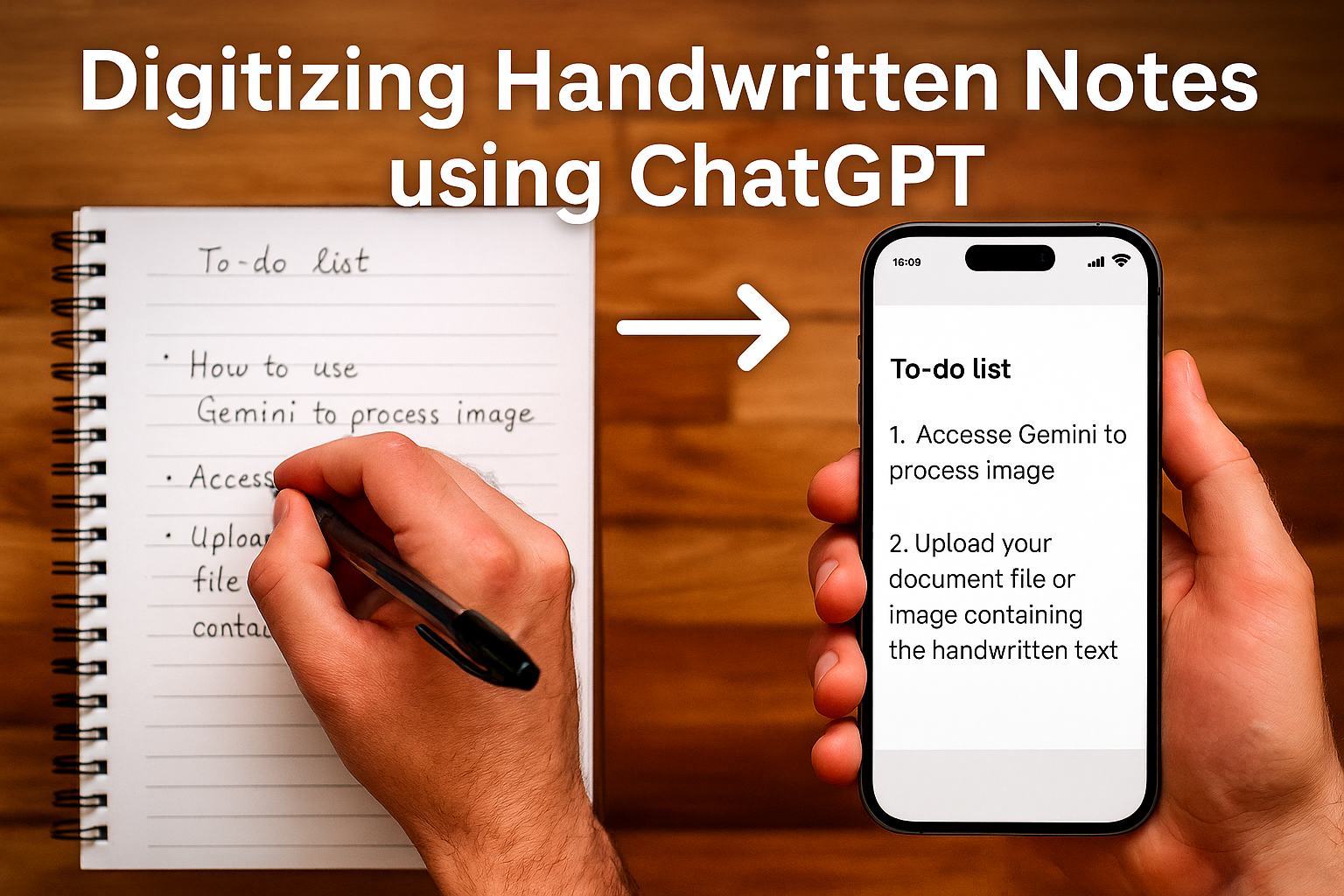
With OpenAI’s newest release, free users now have access to the powerful Vision capabilities of the flagship model. This means ChatGPT can ‘see’ your handwriting and type it out with human-level accuracy. You can digitize handwritten notes using ChatGPT.
We have all been there: you attend a meeting or a lecture, furiously scribbling notes. But when it comes time to share them, you are stuck staring at pages of ink.
For years, we waited for a tool that could instantly turn messy cursive into clean text. That day has arrived with the latest GPT-5 update — learn more how to transcribe handwritten notes using ChatGPT.
Can ChatGPT Digitize Handwritten Notes?
Yes, and better than ever before.
The latest model, GPT-5, is ‘multimodal,’ meaning it was built from the start to understand images and text together. It can look at a photo of your notebook and transcribe it instantly.
Note for Free ChatGPT Users: You have access to this advanced model [GPT-5], but there are limits. You can send a specific number of messages. This is usually around 10–16 every few hours. After that, it switches you to the faster, lighter GPT-5 mini model to save resources.
Step-by-Step Tutorial: How to Digitize Your Notes Using ChatGPT
Follow this simple process to convert your handwritten notes to digital text.
Step 1: Capture a Clear Image
The AI is smart, but it needs a good view.
- Lighting: Make sure the page is well-lit and free of dark shadows.
- Angle: Take the photo directly from above.
- Format: Standard JPEG or PNG files work best.
Step 2: Log In to ChatGPT
Go to chatgpt.com or open the app. The free tier now defaults to the GPT-5 model (or GPT-5.1 Instant) for your first few messages, giving you the smartest vision analysis available.
Step 3: Upload Your Notes

- On Mobile: Tap the + (plus) icon next to the text box and select your photo.
- On Desktop: Click the paperclip icon to upload the image file.
Step 4: Enter the Magic Prompt

Once your image is uploaded, give ChatGPT a clear instruction.
The Prompt:
“Please transcribe these handwritten notes into text. Keep the formatting the same as the image, including bullet points and headers.”
Step 5: Review and Refine

In seconds, [GPT-5] will output the text.
- Check for Errors: Because [GPT-5] has improved reasoning, it is much better at guessing messy words based on context than older versions.
- Refine the Output: If you want it summarized, just ask: “Now summarize these notes into a checklist.”
Advanced Method: Using Specialized Custom GPTs
Free users can also use Custom GPTs, which are special versions of ChatGPT trained for specific tasks. These now run on the [GPT-5] architecture for better performance.
Here are two recommended tools:
1. Handwriting to Text GPT

- Best For: Quick, direct transcription.
- How to Use: Search for “Handwriting to Text” in the GPT Store. It is optimized to recognize cursive scripts that standard models might miss.
- Link: Handwriting to Text GPT
2. Digitize Handwritten Notes

- Best For: Formatting.
- How to Use: Upload your image and ask it to “Format this for Notion” or “Convert to a PDF.” It uses the logic of [GPT-5] to structure the document perfectly for other apps.
- Link: Digitize Handwritten Notes
3. Math Solver

- Best For: STEM students and complex equations.
- How to Use: Standard OCR often fails with complex mathematical notation ($x^2$, integrals, or chemical structures). Upload a photo of your handwritten homework or equations. This GPT will digitize them into proper text (LaTeX). It can also solve them or explain the steps.
- Link: Math Solver
4. Screenshot to Code

- Best For: Developers, UI/UX Designers, and sketching ideas.
- How to Use: This is the tool from your screenshot. Upload a photo of a hand-drawn wireframe or a screenshot of an existing website. It instantly converts the visual into clean HTML/Tailwind/JS code, saving hours of manual coding.
- Link: Screenshot to Code
5. Diagrams: Show Me

- Best For: Visual thinkers and flowcharts.
- How to Use: Perfect for digitizing whiteboard sessions or hand-drawn mind maps. Upload a photo of your rough flow chart and ask it to “Digitize this diagram.” It will convert your scribbles into a clean, editable digital chart or graph that you can export to other tools.
- Link: Diagrams: Show Me
Important: Using these custom tools counts toward your [GPT-5] message limit. If you run out, you will have to wait for the limit to reset. You can use the [GPT-5 mini] model, which is faster but may have less detailed vision capabilities.
5 Expert Hacks for Flawless Digitization of Handwritten Text using ChatGPT
To get the most out of ChatGPT’s vision features, use these five advanced tips to improve accuracy and speed.
- Use High Contrast for Better Accuracy: ChatGPT reads best when there is a strong difference between the ink and the paper. Always use a dark pen (black or blue) on white paper. If your notes are in pencil or on colored paper, try increasing the contrast of the photo using your phone’s edit settings before uploading it.
- Give the AI Context: Don’t just say “Transcribe this.” Tell ChatGPT what the notes are about. For example, “Transcribe these biology lecture notes about cell division.” When the AI knows the topic, it is much better at guessing messy words and technical jargon.
- Batch Your Images to Save Limits: Since free users have a limit on how many GPT-5 messages they can send, do not upload one page at a time. Take a photo of two pages side-by-side (if they are clear) or upload 3-4 images in a single prompt. This lets you digitize a whole chapter while only using one “message credit”.
- Ask for Specific Formatting: Save yourself time by asking for the final format you need. You can add instructions like “Output this as a CSV file for Excel” or “Format this in Markdown for Notion.” ChatGPT will structure the text perfectly so you don’t have to fix it later.
- Protect Your Privacy: If you are digitizing sensitive journals or work meeting notes, go to Settings > Data Controls and turn off ‘Improve the model for everyone.’ This ensures your personal handwritten thoughts are not used to train OpenAI’s future models.
Frequently Asked Questions (FAQs) on ChatGPT for Digitizing Handwritten Notes
Can ChatGPT digitize handwritten notes?
Yes. Using the [GPT-5] model available to free users, ChatGPT can perform advanced Optical Character Recognition (OCR) to convert handwriting into digital text.
How do I digitize my handwritten notes?
Simply take a photo, upload it to ChatGPT, and ask it to “Transcribe this.” The [GPT-5] model handles the rest, maintaining your bullet points and headers.
Is this feature completely free?
Yes. Free users get access to [GPT-5] and its vision features. However, there is a limit on how many messages you can send in a few hours before it switches to the [GPT-5 mini] model.
Can ChatGPT read cursive writing?
Yes. The [GPT-5] model represents a significant jump in ability to read complex and messy handwriting compared to older versions like GPT-4.
What happens if I hit my limit?
If you use up your [GPT-5] allowance, you will be switched to [GPT-5 mini]. This model is very fast and capable for text, but for the best handwriting recognition, you may want to wait for your high-intelligence limit to reset.
Can ChatGPT convert my notes into a table?
Yes. If you have drawn a table in your notebook, you can ask ChatGPT to keep that format. In your prompt, simply say: “Transcribe this image and format the data as a table.” It will create a neat digital table that you can copy and paste into Excel or other apps.
Does this work for languages other than English?
Yes. The [GPT-5] model is excellent at understanding many languages. whether your notes are in Spanish, French, German, or Hindi, ChatGPT can read and transcribe them just as easily as English.
Can I export the text to Word or Google Docs?
ChatGPT does not have a direct “Save to Word” button, but it is easy to move your text. Once the AI transcribes your notes, you can click the Copy icon (it looks like a clipboard) at the bottom of the message. Then, open your Word document or Google Doc and paste the text there.
What if ChatGPT makes a mistake in reading my writing?
If the AI misreads a word, you don’t have to fix it manually. You can just tell it to correct itself! Reply with a prompt like: “You misread the third bullet point. It should say ‘Meeting with Sarah’, not ‘Meeting with Sam’. Please fix it.” The AI will rewrite the text with the correction.
Can I upload multiple pages at once?
Yes, you can upload multiple images in a single message. However, remember that free users have a limit on how much the [GPT-5] model can process at one time. If you have 20 pages of notes, it is better to do them in small batches (like 3-4 pages at a time) to ensure the AI doesn’t miss any details or hit a limit.
Check out more ChatGPT Hacks on AppliedAI Tools
Make the most of ChatGPT for your personal or workplace productivity:
- ChatGPT For Free Personal Color Analysis – Prompts and GPTs
- How to use ChatGPT on WhatsApp in 3 steps
- Claim ChatGPT Go Free in India: Features and Reviews
- 5 ChatGPT Parental Controls: OpenAI Age Detection Tech Explained
- How OpenAI Critterz Makes Filmmaking Accessible To Independent Animators
- Use ChatGPT Projects Feature For Free [Tutorial with Example]
- Best AI Browsers: Free Comparison Business Analysis Report
- ChatGPT Search Upgrade: Shopping Without Login
We will update you more about such AI news and guides on using AI tools, subscribe to our newsletter shared once a week:
This blog post is written using resources of Merrative. We are a publishing talent marketplace that helps you create publications and content libraries.
Get in touch if you would like to create a content library like ours. We specialize in the niche of Applied AI, Technology, Machine Learning, or Data Science.
Leave a Reply