I am coming across lots of praises for Google NotebookLM across social media. This includes positive reviews from the open-source Obsidian fans too – which caught my attention. This is because Obsidian are one of the most serious note-takers out there.
For Google NotebookLM, they have highlighted a major limitation too:

Google is known for nuking its products, and NotebookLM is still in ‘experimental’ mode. So the doubt on taking it a replacement for existing note-taking set up is valid.
However, this does not mean you should not explore its capabilities – you can integrate it with existing note-taking workflows.
I am a Google Keep user for simple note-taking and saving any ideas. I thought exploring NotebookLM and Google Keep combination would make sense. This way, I can make the most of my existing notes.
One of the standout features of NotebookLM is its Audio Overviews, introduced in September 2024. This functionality enables users to convert complex documents into engaging, podcast-like audio discussions, facilitating a deeper understanding of the material. Audio Overviews simulate conversations between AI hosts about the content. They cater to auditory learners and those seeking alternative ways to process notes.
While I do not have a podcast, I was curious to explore these features and more for my daily work. Maybe I can understand podcasts better?
In this guide, I have shared how to use Google NotebookLM for beginners and tips based on my experience.
- An overview of Google NotebookLM as a note-taking app for beginners – how it works, pros, cons, and use cases.
- How to integrate NotebookLM into your daily routine – integrating Google NotebookLM into existing note-taking workflows for popular apps.
- Answers to FAQs I found online on Google NotebookLM.
I have also identified specific use cases for Google NotebookLM, and will publish dedicated guides for each. So do subscribe to get them on your emails!
What is NotebookLM from Google?
Google NotebookLM is beyond your usual note-taking app – it is an AI research assistant. It helps capture notes across your online and offline world. It also interprets them, makes connections, and builds on them for more comprehensive note-taking.
To make it easier – imagine having a brilliant research assistant. It can instantly analyze documents and generate insights. It helps you understand complex information in minutes. That’s exactly what Google’s NotebookLM promises to deliver.
NotebookLM initially debuted as “Project Tailwind” at the Google I/O developer conference in May 2023. It has since evolved into a sophisticated AI-powered research and note-taking tool. Developed by Google Labs, it integrates with Google’s Gemini AI. This integration assists users in organizing, summarizing, and deriving insights from their documents.
You can upload various content types—including text files, PDFs, Google Docs, websites, and Google Slides. It answers questions, generates ideas, and even creates podcast-style audio overviews based on the uploaded materials.
Overall, unlike standard note-taking tools, NotebookLM uses advanced language models, particularly Gemini, to help you:
- Quickly summarize complex documents
- Generate insights and ask questions about your source materials
- Create interactive notes that feel like a conversation with an intelligent research partner
- Transform text into engaging formats like audio summaries
Overall, Google NotebookLM is transforming how students, researchers, writers, and professionals approach information gathering and knowledge synthesis. All thanks to its advanced Gemini model which is progressing quite well since its release.
What are the available Google NotebookLM versions?
Google NotebookLM has a ‘Free’ and ‘Paid’ version available.
- NotebookLM: This is the free version accessible to anyone with a Google account. It offers core functionalities such as document analysis, summarization, and note-taking capabilities.
- NotebookLM Plus: Introduced in December 2024, this premium version provides enhanced features tailored for power users, teams, and enterprises. This includes increased usage limits, advanced features like audio overviews or personalization, team collaboration, and analytics features.
I will share about both in detail in coming sections of this guide.
When did Google NotebookLM release?
Google NotebookLM was released in 12 July 2023 by Google Labs. It is still in experimental mode – so I would recommend cautious usage for its useful features than full migration.
Why explore Google NotebookLM? – Key standout features to look for
Once you explore, Google NotebookLM has the potential to help you make the most of your notes. Some key features that excite me include:
- Document Integration: Users can upload various types of content, including PDFs, Google Docs, and Google Slides. NotebookLM then utilizes Google’s advanced language models to analyze and offer insights based on the uploaded materials.
- Summarization and Explanation: The tool can generate concise summaries and explanations. This aides in quickly grasping the essence of extensive documents.
- Interactive Q&A: NotebookLM allows users to pose questions related to their documents, offering answers grounded in the provided content.
- Audio Overviews: A notable feature introduced in September 2024 is “Audio Overviews.” It converts text-based information into podcast-style audio discussions. AI-generated hosts bring these discussions to life. This functionality enables users to consume content audibly, enhancing accessibility and engagement.
- Discover Sources: When you create a new notebook, upload your resources, NotebookLM helps you explore more relevant sources. With this, you can enrich your research using Google’s ecosystem of publishing and web. This is like the ‘Deep Research’ feature by ChatGPT, DeepSeek, or Gemini available to NotebookLM.
All these features are separate paid AI tools. You can replace them with a single Google NotebookLM free or paid subscription. I am observing as the AI engineering landscape grows, we will see more such functionalities available to common users.
Who can use Google NotebookLM?
First, let’s understand the best uses of Google NotebookLM.
3 Google NotebookLM best uses:
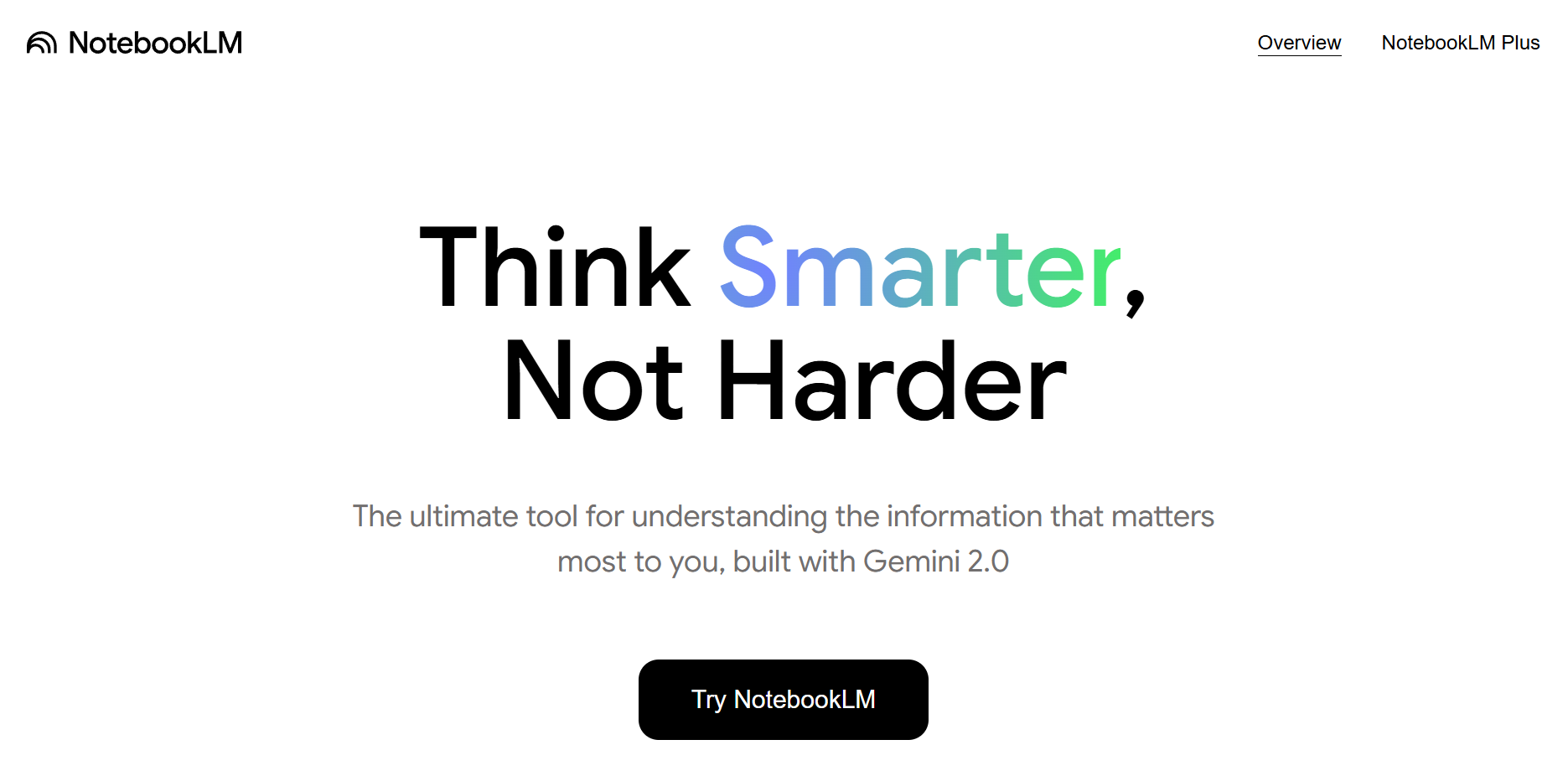
Google NotebookLM’s landing page summarizes the best uses cases into 3 key areas: Study, Organize, and Think:

I think Google NotebookLM is a great tool to get started with using AI for daily productivity. It does not overwhelm the end user (like me who uses Google Keep). Yet, it has advanced and capable enough to cater to below professionals:
1. Academic researchers and students
Graduate and doctoral students, academic researchers, scholarly writers, and scientific investigators are already using Google NotebookLM as a research assistant.
Here’s how academic professionals and students can use Google NotebookLM:
- Literature review compilation
- Research paper analysis
- Complex topic synthesis
- Cross-referencing multiple academic sources
Here’s a quick use case video I found that will introduce you to Google NotebookLM for academia:
2. Professional writers and content creators
Journalists, technical writers, book authors, long-form content creators, and investigative reporters can use it to streamline their writing tasks.
Here’s how professionals writers and creators can use Google NotebookLM:
- Deep research on specific topics
- Source material organization
- Generating preliminary article outlines
- Fact-checking and verification
Here’s ‘The Nerdy Novelist’ YouTube channel sharing how Google NotebookLM is a great tool for authors:
3. Business professionals
Strategy consultants, market researchers, business analysts, product managers, and corporate strategists can use it for brainstorming and connecting the dots.
Here’s how business professionals can use Google NotebookLM:
- Industry report analysis
- Competitive intelligence gathering
- Strategic planning documentation
- Complex data interpretation
Here’s a video I found on how Chicago-based Heritage Bikes & Coffee, uses Google NotebookLM to grow their small business:
4. Knowledge workers and knowledge management specialists
Knowledge managers, information architects, corporate trainers, and learning and development professionals can streamline their knowledge management workflows.
Here’s how knowledge management professionals can use Google NotebookLM:
- Organizational knowledge synthesis
- Training material development
- Complex information distillation
- Learning resource creation
- Research more relevant sources using ‘Discover Source’ feature.
I found this very useful video that covers various use cases with examples of using Google NotebookLM as an AI knowledge assistant:
I will cover detailed guides on each of these Google NotebookLM user personas, subscribe to get them!
Are there any pre-requesites to using Google NotebookLM?
Yes – here are the technical requirements to use Google NotebookLM:
- Personal Google account
- Modern web browser
- You must be geographically located to regions where Gemini API is available – check eligibility here.
- Access to digital documents
- Minimum age: 18 years old. Educational institutions might have specific guidelines
- Stable internet connection – it does not work offline since it is an AI research assistant.
- Note: Google NotebookLM can only read visible text within the specified URL (source). Its latest update helps you ‘discover sources’ for your notes using web search. But you can choose to add these sources, retaining control over your content.
Does Google NotebookLM have a steep learning curve?
Like most Google products, the Google Labs team has done a great job to make AI note-taking available for non-technical users. If you are still concerned, I have divided Google NotebookLM’s capabilities based on skill levels and learning curve:
Beginner Level
- Google NotebookLM has an intuitive user interface
- You can upload basic document and analyze it.
- Use simple prompts to generate responses.
- Summarize long texts or generate insights.
Intermediate Level
- Explore advanced Google NotebookLM prompting techniques
- Perform multiple document cross-referencing
- Ask for nuanced insights from the notes shared.
- Design complex research scenarios and generate conclusions.
Advanced Level
- Design and implement sophisticated prompt engineering techniques.
- Design comprehensive research workflows and sync or share data with other third-party aps.
- Strategic information synthesis
- Find your own innovative use of Google NotebookLM’s AI capabilities.
How to access Google NotebookLM?
In December 2024, Google launched NotebookLM Plus. It is a premium version offering enhanced features and higher usage limits. These include increased access to Audio Overviews and expanded storage for notebooks and sources. In February 2025, NotebookLM Plus became available to individual users. This was through the Google One AI Premium subscription plan, thus expanding its reach beyond enterprise clients.
There are 3 ways to access Google NotebookLM for both free and Plus versions.
Method 1: Direct Web Access
- Open your web browser
- Navigate to the official NotebookLM website
- Click “Sign In” with your Google account
- Accept terms of service and privacy agreements
- Complete the setup wizard and create your first notebook by clicking on ‘+ Create New’ button. I have shared the set up in detail in coming sections on creating and working on the notebooks.
Method 2: Google Workspace Integration
Access for enterprise Google Workspace or Google Workspace for Education users depends on organizational settings. If you’re cannot access NotebookLM with a company or educational email, consult your organization’s administrator to turn on the app. Employees can access through integrated Google suite.
Method 3: Google One
NotebookLM Plus is available through the Google One AI Premium subscription plan, priced at $19.99 per month, which also includes 2 TB of storage and access to Google’s advanced AI models.
How to get started with Google NotebookLM – taking the first steps
First, you can explore the free version of Google NotebookLM web app.
Visit the website by navigate to NotebookLM’s official site using your preferred web browser.
Click on ‘Try NotebookLM’ and sign in using your Google account.
It will show you a quick tutorial on how to create a new notebook on NotebookLM:

First, you can try their example notebook provided and explore how the platform looks like. It will take you to the ‘Introduction to NotebookLM’ notes. This pre-loaded notebook with ‘view only’ access. It provides an overview and lets you experiment with existing content to understand the tool’s capabilities.

As you can see, there are 3 main sections:
- Sources: Here, you add all your content formats. This includes slides, text, URLs, PDFs, etc as sources for Gemini to read and understand.
- Chat: Here, you can add prompts or ask questions that the Gemini will use the sources added to answer. You can ask it to summarize your sources, get citations for the answers, create reports, and much more.
- Studio: Whatever notes you create, you can save it in the studio. Explore the ‘Audio Overviews’ feature, which converts text-based content into podcast-style audio summaries, offering an alternative medium for content consumption.
For example, you can try asking it a question, and the Gemini will work to get you an answer:

Gemini will not only answer, but also give citations to everything it has generated:

When you click on any of the citations, it will pin point where exactly it took the reference from!

Further, you can continue to ask more questions. For this too, Gemini suggests a few to help you work on your research near the chat window.

You can click on ‘Save to note’ to save it in the ‘Studio’ panel. Explore ‘Audio Overview’ and ‘Mind Map’ too!
Overall, you dump the NotebookLM with your sources. Then, interact with the data, save what you like, and refer it in the future. That’s how Google NotebookLM works.
How to create a new notebook on Google NotebookLM?
Once you have explored the sample notebook, head to the main dashboard.
Then, click on ‘+ Create New’ button:

It will pop up a panel for you to add all relevant sources. It will show you all available formats to add – across Google ecosystem, links, and text. You cal also upload sources like PDF or audio files:

For example, let’s say I want to study a blog post on the Stanford’s S1 AI model. It was published on AppliedAI Tools site. It will ask me to paste all the URLs:

With a single link, it has summarized the article and suggested relevant questions to ask for deeper insights! I can copy the summary or save it as a note.

It has also generated an Audio Overview of the blog post!

You can also interact with the audio. The whole audio feels like a casual chat between 2 podcast hosts!

Here’s a link to the audio overview of my blog post on Stanford’s S1 model: Audio Overview Example. Google NotebookLM also lets you download and share the audio overview files. This 15.46 minutes of audio overview took around 15 minutes to generate. Isn’t this super cool!?
NotebookLM has released a new feature ‘Discover Sources’ to enrich your sources for deeper note-taking and research.
Simply head to ‘Sources’ panel and click on ‘Discover’ button. Make sure you already have a few sources to push NotebookLM into a certain direction:

Then give it a prompt as to what you are interested to further find sources for. They also have ‘I’m feeling curious’ button to let NotebookLM find more sources. This is just like we had ‘I’m feeling lucky’ on Google search haha!

I asked it to find some real-world adoption of small language models. This is for my latest blog series on small language models.
NotebookLM discovered 10 high-quality sources for me, and I was very happy with the results. Now, I can select the relevant ones and add them into my sources section for more research:

Once these sources are imported, NotebookLM studies it. You can again explore these sources by creating study guide, audio overviews, FAQs, briefs, etc.
How does Google NotebookLM work?
Google NotebookLM uses Gemini 1.5 Pro to interpret images, charts, and diagrams within uploaded documents. One can expect further updates with the release of game-changing and benchmark shattering Gemini 2.5.
How to change language on Google NotebookLM?
Head to the settings button and click on ‘Output Language’:

It will show you multiple options for choosing the language. Click on save and test the output:

Note: I tried changing the output language with this method – but its not working! Is it working for you? Let me know in the comments 😒
Does Google NotebookLM hallucinate?
Google’s NotebookLM aims to reduce AI hallucinations by grounding responses in user-provided source material, reducing the risk of misinformation. However, it is not immune to inaccuracies. Some users have noted instances of generated content not found in the original documents.
To mitigate these risks, it’s advisable to:
- Fact-check responses: Always verify the AI’s outputs against your original documents to guarantee accuracy. Google NotebookLM does give citations which you must cross verify.
- Give comprehensive source material: The quality of AI-generated content heavily depends on the completeness and relevance of the uploaded documents. So give as much as possible sources.
- Stay informed: Keep abreast of updates and best practices related to NotebookLM to improve its use and reduce potential inaccuracies.
Deep dive into Google NotebookLM core features
Now, let’s understand more about its advanced features:
AI capabilities of Google NotebookLM
At the heart of NotebookLM lies its robust AI engine, which empowers users to engage with their content in innovative and interactive ways:
Interactive chat-based features:
NotebookLM allows users to interact dynamically with their notes. By posing questions or providing instructions, users can refine AI-generated responses, making the note-taking process more personalized and effective. This feature transforms static documents into dynamic dialogues, enhancing comprehension and retention.
Audio overviews:
One of NotebookLM’s standout features is the ability to generate AI-crafted podcasts from documents. Known as ‘Audio Overviews,’ this functionality converts written content into engaging, podcast-style discussions featuring AI-generated hosts. Users can interact with these hosts by asking questions. They get personalized responses. This approach caters to auditory learners and those who prefer listening over reading. This is the best feature for anyone feeling hindered to reading books! Also, one can finally start reading terms and conditions by asking key questions 😛
In a latest update, you can now give specific instructions to these AI hosts. This customizes the audio content to your preferences. This feature allows for a more personalized and engaging way to consume information.
Learn more about Audio Overviews here: Google NotebookLM Audio Overview
Mind Mapping
NotebookLM now offers an interactive Mind Map feature that allows users to visualize and navigate complex topics within their notebooks. This tool helps in exploring connections between concepts, facilitating a deeper understanding of the material. For example, a student researching the Coral Reef Ecosystem Decline can notice interconnected factors. These factors include “Ocean Acidification,” “Rising Sea Temperatures,” “Pollution,” and “Overfishing.”
You can go to the ‘chat’ section and click on ‘Mind Map’. It will instantly generate a detailed mind map using your sources. You can click on each topic and it will further dive deep into it like this:

Learn more about Mind Maps here: Google NotebookLM mind mapping
Integration and API
NotebookLM is designed to integrate seamlessly with various content sources, enhancing its versatility:
Supported formats:
Users can import a variety of content types into NotebookLM. These include Google Docs, PDFs, Google Slides, website URLs, YouTube videos, and audio files. This broad support allows users to consolidate diverse materials into a single platform for comprehensive analysis and interaction.
API access:
As of now, Google has not released a public API for NotebookLM. This means that direct programmatic access for customization or integration with other applications is not officially supported. Users seeking such functionalities may need to rely on manual processes. They can also use third-party solutions. It’s important to keep in mind the potential limitations and security considerations of unofficial APIs.
File handling limits
Understanding the constraints related to file handling is crucial for optimizing the use of NotebookLM:
Source limits:
Users can upload up to 50 sources into NotebookLM. Each source can contain up to 500,000 words. Alternatively, files can be up to 200MB for uploads. This capacity allows for the management of large amounts of information within the platform.
Learn more about sources and its limits here: Sources in Google NotebookLM
Content updates:
It’s important to note that once a document is imported into NotebookLM, it creates a copy of the original. Later edits made to the original document are not automatically reflected in NotebookLM. To update the content within NotebookLM, users must manually re-upload the modified document.
You can use these core functionalities to transform their approach to research and note-taking. This makes the process more interactive and efficient. It also tailors it to their individual learning preferences.
Things to explore to get started with Google NotebookLM
Here are a few ideas I came up with for each of the user persona I mentioned in prior sections:
Students
- Start with course-related documents
- Use for assignment research
- Practice summarization skills
- Complement traditional research techniques
For students who are looking to use Google NotebookLM for learning, I found this useful video by Tiago Forte on the same:
Professionals
- Start with work-related reports
- Integrate into existing research workflows
- Confirm AI-generated insights
- Use as a preliminary research tool
Researchers
- Upload multiple academic sources
- Explore cross-referencing capabilities
- Generate research questions
- Support literature review processes
Reflection questions when getting started with Google NotebookLM:
- How might NotebookLM transform your current research approach? Note down your workflows and see how its features can help improve them.
- What unique challenges could this tool help you overcome?
- Have ways to cross check facts given on the Gemini output.
What can you do with Google NotebookLM free version?
Google’s NotebookLM free version is enough to help you organize, summarize, and interact with your documents effectively. Here’s what you can do with Google NotebookLM’s free version. I have already covered these features in detail:
- Upload and organize diverse sources
- Generate summaries
- Generate study guides – here’s a sample study guide I generated by clicking on the button. It gave me key concepts, quiz questions, answers to the quiz, essay questions, and glossary terms!

- Just like Study Guide, you can also generate FAQs, briefing documents, timelines, and thematic outlines based on curated notes. All this in a click of a button – for free!

- Engage with audio overviews
- Chat with AI unlimited times to ask questions based on your sources.
- Inline citations are provided in responses to help locate supporting passages quickly.
- Get suggested queries based on the content for deeper exploration.
- Allows multi-modal analysis powered by Google’s Gemini Pro model. NotebookLM can analyze text alongside images, charts, and diagrams from documents.
Is Google NotebookLM free unlimited?
Google NotebookLM is free to use but has limitations in terms of usage capacity. It is not unlimited. Here are the main restrictions:
- Document Upload Limits: Users can upload up to 50 documents per notebook. Each document can have a limit of 500,000 words or 200 MB.
- Notebook Creation Limits: Users can create up to 100 notebooks for different topics.
- Source Handling: NotebookLM can reference up to 500 sources per project. It does not automatically sync updates to uploaded files. A manual refresh is required.
While NotebookLM does not need a subscription, these constraints guarantee controlled usage within its free version.
How to use Google NotebookLM plus?
NotebookLM Plus is the premium version of Google’s AI-powered note-taking and research assistant. It offers enhanced features like advanced summarization, multi-document analysis, and extended context size for larger projects.
It is designed for professionals, researchers, and businesses who need more powerful tools for complex workflows.
How much does Google NotebookLM plus cost?
Google’s NotebookLM Plus is available through the Google One AI Premium subscription, priced at $19.99 per month. This plan includes extra benefits like 2TB of storage and access to advanced AI models.
Eligible U.S. students aged 18 and older can avail a 50% discount, reducing the monthly subscription fee to $9.99 for the first 12 months.
To verify eligibility and subscribe, students can visit the Google One AI Premium page or explore their announcement news here.
What more do you get with Google NotebookLM Plus?
By upgrading to NotebookLM Plus, users unlock a suite of advanced features. These features are designed to simplify complex research, larger files, and foster collaboration:
- Increased Usage Limits: Subscribers gain from over five times more Audio Overviews. They also get more notebooks and sources per notebook compared to the free version.
- Customization Options: The Plus version allows users to personalize the style and tone of notebook responses. This caters to specific preferences and requirements.
- Enhanced Collaboration: NotebookLM Plus introduces shared team notebooks equipped with usage analytics, facilitating better collaboration and insight into team interactions.
- Extra Privacy and Security: Subscribers gain access to improved privacy and security features, ensuring the protection of sensitive information.
- Multi-Document Summarization: Generates insights from multiple sources at once.
Google NotebookLM Free vs. Plus version differences
I have prepared a table here to help you decide if you should upgrade or not:
| Feature | NotebookLM (Free Version) | NotebookLM Plus |
|---|---|---|
| Source Uploads | Upload PDFs, websites, Google Docs and Slides, YouTube URLs, and more. | Same as Free Version. |
| Content Generation | Create one-click summaries, FAQs, timelines, and briefing documents. | Same as Free Version. |
| Audio Overviews | Generate Audio Overviews and listen on-the-go. | Access to 5x more Audio Overviews. |
| Chat Queries | Ask questions for deeper insights and get answers with citations; up to 50 queries per day. | Up to 500 chat queries per day. |
| Notebooks and Sources | Up to 100 notebooks, each containing up to 50 sources. | Up to 500 notebooks, each containing up to 300 sources. |
| Premium Features | Not available. | Includes sharing a “Chat-only” notebook, advanced chat settings, and notebook analytics. |
| Customization | Not available. | Customize response styles (e.g., ‘Guide’ or ‘Analyst’) and output length (e.g., ‘Longer’ or ‘Shorter’). |
| Collaboration | Basic sharing options. | Enhanced sharing options with the ability to customize access levels and view analytics on notebook usage. |
| Usage Analytics | Not available. | View data on user access and query activity for shared notebooks. |
Learn more about Google NotebookLM Free vs Plus from their official help page.
Who should buy NotebookLM Plus?
Overall, this is what NotebookLM Plus offers below features more than the free version:
- Increased context size: Handle larger projects with more documents.
- Advanced summarization: Summarize and analyze multiple sources efficiently.
- Team collaboration: Better control over shared projects and enterprise privacy features.
If you are team from academia, a content creator, or a business, NotebookLM Plus is worth it. This is especially true if you are looking to process more sources.
For example, researchers and academics can handle multiple sources and conducting in-depth research. While businesses can manage complex documentation and collaborative workflows.
Check these Google NotebookLM Plus alternatives before committing
I have compared Google NotebookLM with some popular AI research assistant and note-taking apps. This comparison table will give you a better idea of where NotebookLM Plus subscription stands:
| Feature/Service | NotebookLM Plus | Unriddle | Mem.ai | Obsidian | Tana |
|---|---|---|---|---|---|
| AI-Powered Summaries | Yes | Yes | Yes | Via Plugins | Yes |
| Document Analysis | Yes | Yes | Yes | Yes | Yes |
| Note Linking/Graph View | Yes | No | Yes | Yes | Yes |
| Collaboration Features | Yes | Yes | Yes | Yes | Yes |
| Local Storage | No | No | No | Yes | No |
| Customization Options | Moderate | Limited | Moderate | High | High |
| API Access | No | No | No | Via Plugins | Yes |
| Pricing | $19.99/month (includes 2TB storage) | Starts at $12/month | $14.99/month | Free (Personal Use); $50/year (Commercial Use) | $18/month (Monthly); $14/month (Annually) |
Here is a quick checklist to give you an idea of where NotebookLM stands in terms of best use case:
- NotebookLM Plus: Offers advanced AI features, including AI-generated audio overviews and enhanced usage limits. Subscription includes 2TB of storage and access to Google’s advanced AI models.
- Unriddle: Specializes in AI-driven summaries and insights, focusing on document analysis.
- Mem.ai: Provides AI-assisted note-taking with dynamic organization and integration capabilities.
- Obsidian: Emphasizes local storage, extensive customization, and a robust plugin ecosystem.
- Tana: Combines networked thinking with structured databases and offers AI chat functionalities.
I will add each of these tools into AppliedAI tools marketplace soon!
Google NotebookLM pros and cons
Based on my experience of using Google NotebookLM, here’s what I think are its benefits and limitations:
What are the benefits of Google NotebookLM?
Audio Overviews for creating or understanding audio content
A standout feature I felt of Google NotebookLM is its ability to generate podcast-style audio summaries from textual content. This ability transforms written material into conversational audio formats. If you are an auditory learner, this is best feature for you. It also assists those seeking different ways to engage with information.
For example, I can upload text version of sources and seek clarifications on characters, events, or summaries. This is especially great for less popular titles lacking online summaries.
Versatile data integration options
The platform supports the integration of various data formats, including PDFs, Google Docs, websites, and YouTube videos. Users can upload up to 50 sources worth 25 million words – that’s good enough for its free version. Google NotebookLM supports comprehensive research and analysis across diverse content types.
Personalized AI assistance:
General AI models’ primarily source information is from publicly available web content. Google NotebookLM grounds its responses in the specific documents provided by the user. This personalization ensures that the assistance and insights generated are highly relevant and tailored to individual needs.
What are the limitations of Google NotebookLM?
Dependence on user-provided data:
NotebookLM does not autonomously search the internet for information. Users need to manually input data from external sources. This process can be time-consuming. You can explore ‘Discover Sources’ feature to let NotebookLM find good sources for you. Remember that you can choose to add or remove sources from these new discovered sources. Hence, you keep control of source data, and improving speed of research.
Limited instruction following:
I observed that the platform’s ability to follow specific instructions is lacking. This shortcoming leads to seek alternatives for tasks requiring precise guidance. For example, I asked the free version of Google NotebookLM to get me YouTube transcripts from the URL that I shared with it as a source. It did not do a great job. I had to go for a dedicated transcript generator:

Potential privacy concerns:
If you are handling sensitive or confidential data, then it is indeed a matter of hesitation about uploading such information. This highlights the need for robust privacy assurances, which one gets on choosing NotebookLM Plus subscription only.
Repetitive and limited voice options in Audio Overviews:
The Audio Overviews feature is innovative, however, the AI-generated voices can get repetitive. They offer limited customization options. This can affect the overall user experience, especially for podcast creators or audio storytellers. These users may prefer a variety of vocal tones and styles in audio content.
Limited control over AI chat interactions:
I observed a lack of control over the direction and flow of AI-generated conversations within NotebookLM. This limitation can lead to interactions that may not align with my intentions. Although I think this is an issue of the ‘chat interface.
This mismatch could potentially hinder the effectiveness of the tool in certain scenarios.
For example, NotebookLM’s functionality is closely tied to the specific documentation provided by the user. When questions fall outside the scope of this documentation, the AI may struggle to generate relevant responses. This can lead to unhelpful or inaccurate interactions.
Data integration limitations:
This is my biggest problem with NotebookLM! Despite its versatility, NotebookLM has constraints for data integration. For each topic, I have to create a different notebook. So I can’t personalize or interconnect notes within my notebooks, as each operates like a separate folder. I hope they work on this issue!
Potential for AI hallucinations:
Last, but not the least – the usual AI hallucination issue is there for Google NotebookLM too.
As with many generative AI tools, NotebookLM may produce fabricated information. It may also give inaccurate details. This is a phenomenon known as “AI hallucination.” You must stay vigilant and critically assess the AI-generated content. To make certain its validity, you must explore citations of each statement give. This is particularly important when relying on the tool for research or decision-making purposes.
Google NotebookLM example – real use cases
A best practice I would recommend: Shifting completely into Google NotebookLM must be gradual from your existing system.
Here, I have shared how people are integrating Google NotebookLM with their existing workflows:
Using Google NotebookLM with Obsidian:
Using NotebookLM with Perplexity:
Using Google NotebookLM with Gemini Deep Research:
With the release of Gemini 2.5 Pro for free, note-taking will get even better. Presently, Google’s NotebookLM uses Gemini 1.5. But you can use the latest Gemini Deep Research to upgrade note-taking till the updates arrive.
I have come across this video on combining NotebookLM with Gemini Deep Research. It explains how Gemini’s context-aware intelligence transforms large amounts of data. This transformation applies to documents and PDFs, as well as multimedia. It results in insightful summaries and interactive discussions. This makes it easier for users to extract key information.
Google NotebookLM example podcast:
When researching, I observed many using NotebookLM to create a sample podcast. I have not found a commercial podcast launched and in continuation yet.
I found this video which speaks about making a ‘video’ podcast – with NotebookLM and other tools to make AI avatars:
Ethan Mollick sharing Google NotebookLM example podcast:
Recently, I came across Ethan Mollick’s (Author of Co-Intelligence) LinkedIn post on using NotebookLM. He shared how he fed Google NotebookLM with the text. This included content from his books, blogs, and website. Then, he asked it to generate podcast using the sources. Check out this viral post with insightful comments: Ethan Mollick NotebookLM on LinkedIn.
He has also shared a small tutorial on the same as one of the Google NotebookLM podcast example for using LLMs:
Andrej Karpathy sharing Google NotebookLM example podcast:
Andrej Karpathy, past Director of AI @ Tesla and founding team @ OpenAI praised potential of Google NotebookLM:
NotebookLM is quite powerful and worth playing withhttps://t.co/wQc3HDvJFo
— Andrej Karpathy (@karpathy) September 28, 2024
It is a bit of a re-imagination of the UIUX of working with LLMs organized around a collection of sources you upload and then refer to with queries, seeing results alongside and with citations.
But the…
Steven Johnson on using Google NotebookLM
Steven Johnson is an author of 14 books and editorial director of NotebookLM at Google Labs. He has detailed a lot of articles on Google NotebookLM on his Substack and gave quotes on use of LLMs.
Some useful articles I found:
- How to use NotebookLM as a research tool: He has described how he uses it for his writing work. Useful for writers to learn from his workflows.
- NotebookLM Discord Community: Nerd out with 7000+ other Google NotebookLM enthusiasts on this NotebookLM Discord Community.
Google NotebookLM file size limits
Google’s NotebookLM imposes specific limitations on the size and number of documents you can upload to guarantee optimal performance. I thought knowing these constraints is important – here’s a breakdown across file types:
Google NotebookLM max file size per source: Each source uploaded to NotebookLM can contain up to 500,000 words. Alternatively, it can have a file size up to 200 MB for local uploads.
Google NotebookLM document size and types: NotebookLM supports various document types. These include Google Docs, Google Slides, PDFs, text files, and Markdown files. Each of these sources is subject to the aforementioned limits of 500,000 words or 200 MB.k
Google NotebookLM source size limit per notebook: You can add up to 50 sources to a single notebook. This limit applies to the free version. This means a notebook can encompass a total of 25 million words if each source reaches the maximum word count.
Google NotebookLM context size: NotebookLM can process up to 4 million words of text. It provides a significantly larger context window than many other AI tools presently available.
Google NotebookLM pdf size limit: While PDFs are supported, they must adhere to the same limits. Each file can have up to 500,000 words or be 200 MB. Additionally, PDFs that are copy-protected can’t be imported into NotebookLM.
It’s important to note that exceeding these limits may result in import failures or performance issues. So, when preparing documents for upload, make sure they follow these constraints to aid a smooth experience with NotebookLM.
Frequently Asked Questions
1. Do you need to pay for Google NotebookLM?
Google NotebookLM offers a free version. This version is enough for capturing insights from up to 50 sources per notebook. It lets you make 50 chat queries. A premium tier called NotebookLM Plus is part of the Google One AI Premium plan. It offers features and higher usage limits.
Why my Google NotebookLM won’t work or won’t open?
Make sure you’re using a compatible device and browser for engaging with Google NotebookLM like Chrome. NotebookLM is best viewed on a desktop computer, the app is not feature-rich at this point. If issues persist, check your internet connection. Make sure that you’re using a personal Google account or a participating enterprise Google Workspace account.
Can you use Google NotebookLM on iPhone?
While accessible on mobile devices, NotebookLM is optimized for desktop use.
Google NotebookLM: which AI model powers it?
NotebookLM is powered by Google’s Gemini AI model – presently, at Gemini 1.5 model.
Why is the Google NotebookLM YouTube link not working?
Make sure the YouTube link is valid and publicly accessible. If issues persist, verify that the link is correctly formatted.
Why is the Google NotebookLM share link not working?
First, confirm that the shared notebook’s privacy settings allow access. If the issue continues, try regenerating the share link.
Why is the Google NotebookLM podcast not working?
The “Audio Overviews” feature allows users to convert written content into podcast-style audio summaries with AI-generated hosts. Make sure your content is properly formatted and that the feature is enabled.
In Google NotebookLM, what does LM mean?
‘LM’ stands for ‘Language Model,’ indicating its foundation on advanced AI language processing.
Can you use Google NotebookLM on mobile phone?
Yes, but it’s optimized for desktop viewing.
Why is my Google NotebookLM not in English?
NotebookLM supports multiple languages. Adjust your language settings within the application or your Google account preferences.
Does Google NotebookLM have an Android app?
Presently, NotebookLM is accessible via web browsers and does not have a dedicated Android app.
Does Google NotebookLM have OCR (Optical Character Recognition)?
Yes – with the latest upgrade to Google Gemini 1.5 for NotebookLM, it does include OCR capabilities. It can easily extract text from images or scanned documents.
Does Google NotebookLM have a word limit?
For the free version, each source uploaded can contain up to 500,000 words. Or, it can have a file size of up to 200 MB.
Google NotebookLM: how many sources can I have?
For the Google NotebookLM free version, you can add up to 50 sources to a single notebook. For the NotebookLM Plus version, you can add up to 300 sources per notebook.
How to use Google NotebookLM in Europe?
NotebookLM is available in Europe. Access it via the web at notebooklm.google.
Who created Google NotebookLM?
Google NotebookLM was originally referred to as “Project Tailwind.” A Google Labs team developed it. The team included product manager Raiza Martin and design lead Jason Spielman. Renowned science writer Steven Johnson also contributed.
Can Google NotebookLM make images?
NotebookLM does not have the ability to generate images.
Although, it can now understand and cite questions about images, charts, and diagrams in your sources thanks to Gemini 1.5 Pro’s multimodal capabilities. But it doesn’t generate new images from prompts.
For generating images, you can explore AI models like ChatGPT by OpenAI, Claude, Midjourney, DeepSeek, and more.
Can Google NotebookLM make slides?
Yes! Google NotebookLM lets you incorporate Google Slides as a source.
It reviews and extracts key details from your slides. This process provides summarized insights. These insights can help you in building your own presentations or other related content.
Learn more: NotebookLM goes global with Slides support
Can Google NotebookLM make videos?
Google NotebookLM does not create videos.
However, it aids in analyzing and summarizing content from sources like YouTube. Or else, it can generate audio overviews that can serve as scripts for videos. NotebookLM’s strength lies in distilling information, which can then be used with AI video creation tools like Synthesia or Filora.
Does Google NotebookLM make flashcards?
Google NotebookLM does not have a built-in flashcard feature. But you can create study flashcards by summarizing your materials into a study guide. Here’s how to use NotebookLM for this:
- Upload your materials: Add relevant files to your NotebookLM.
- Generate a study guide: Ask NotebookLM to create a guide with key terms and definitions.
- Review and adjust: Tailor the guide to fit your learning style.
- Create flashcards: Make flashcards based on the study guide.
- Generate Audio Overviews: Get audio summaries of your notes for easy studying.
Can you use Google NotebookLM on offline?
NotebookLM requires an internet connection and does not support offline use. It does allow offline access of uploaded sources.
Can Google NotebookLM read PDF?
Yes, NotebookLM can process PDFs, along with other document types like Google Docs and websites.
It supports reading PDF files, allowing you to upload and work with them. However, direct uploads from Google Drive aren’t available; uploads must come from your computer. After uploading, you can create a notebook and interact with the document’s content. As NotebookLM improves its PDF image processing, you may need to re-upload older PDFs to access enhanced functionality.
Can NotebookLM read aloud?
Yes, the “Audio Overviews” feature converts written content into podcast-style audio summaries.
Can Google NotebookLM search the internet?
NotebookLM processes user-provided documents and does not carry out live internet searches. It can only read texts from the website URLs provided as sources. The latest ‘Discover Search’ feature lets you prompt it with a search query. It will then find relevant sources for you to choose from to add to your main ‘sources’ panel. In the end, you can enrich your sources by allowing NotebookLM to find sources for you. You still keep control of data being used for further note-taking, unlike search engine bots like Perplexity, Geminit, or ChatGPT.
Can Google NotebookLM read ePub?
NotebookLM does not support EPUB file formats natively.
You can convert your ePub files into a compatible format— like PDF or plain text before uploading them to NotebookLM. Explore tools like Calibre to convert ePubs into PDFs. This workaround lets you use NotebookLM’s powerful document processing and AI features even though ePub isn’t directly supported.
Can Google NotebookLM translate?
Yes, Google NotebookLM can translate text from uploaded documents. It can also convert AI responses into different languages. This feature supports over 35 languages for seamless content creation. You can choose the output language for AI responses, I have mentioned about it in earlier sections of this guide.
NotebookLM anchors its language model in your personal notes, creating a custom AI tailored to your information. While the audio overview feature is limited to English, you can upload documents in any supported language.
What is Google NotebookLM good for?
NotebookLM assists in organizing, summarizing, and interacting with user-provided documents. This enhances research and note-taking efficiency.
Why is Google NotebookLM taking so long?
Slow performance may be due to large file sizes or internet connectivity issues. Make sure your documents meet the size requirements and check your connection.
For the audio overview feature, I have experienced it is quite normal for it to take time. I think it depends on your source material size and prompt.
Why is Google NotebookLM service unavailable?
Service unavailability may be due to server maintenance, regional restrictions, or account-specific issues. Check for updates or try accessing it later.
Does Google NotebookLM work on ipad?
Yes, NotebookLM is accessible via web browsers on iPads, but it is optimized for desktop use.
Does Google NotebookLM work in different languages?
Yes, NotebookLM supports multiple languages. You can switch languages through the settings choice within NotebookLM dashboard.
How old do you have to be to use Google NotebookLM?
Users must be 18 years or older to use NotebookLM.
How reliable is Google NotebookLM?
NotebookLM is generally reliable for summarizing and analyzing content from user-provided documents, although occasional AI hallucinations may occur. I have covered the hallucination aspect in detail on this guide – scroll up!
How private is Google NotebookLM?
Google ensures that data uploaded to NotebookLM remains private and is not used for training AI models (Learn More).
Although, I came across this Reddit Post which finds some anomalies in the privacy policy statement. If you choose to give feedback or join their ‘beta’ versions, then humans can review your content or sources.
How accurate is Google NotebookLM?
NotebookLM’s precision depends on the quality and relevance of the uploaded sources. While it provides highly precise summaries, occasional errors can occur.
I would highly recommend to check the citations provided or ask for citations on the chat to fact-check its responses.
How secure is Google NotebookLM?
NotebookLM adheres to Google’s security protocols, ensuring the safety of uploaded documents.
How long has Google NotebookLM been around?
Google NotebookLM was launched in 2023 by Google Labs.
Can Google NotebookLM summarize YouTube videos?
Yes, NotebookLM can analyze and summarize YouTube video transcripts when you give the YouTube video link.
Can you upload pictures to Google NotebookLM?
No, NotebookLM does not presently support image uploads.
You can upload images to Google NotebookLM as standalone PDFs without embedded text. If a file includes only images or handwritten notes, the AI will analyze the content. If it detects any typed text, it will ignore the images and prefer the text.
NotebookLM supports image-only PDFs, allowing uploads and direct imports from Google Drive. If there is even minimal text in the PDF, NotebookLM will focus on that rather than the images. Once uploaded, it integrates the image content into its analysis and summarization workflows.
Can you have multiple notebooks in Google NotebookLM?
Yes, users can create and manage multiple notebooks for different projects. For the free version, you can create up to 100 notebooks. For the paid NotebookLM Plus version, you can create up to 500 notebooks.
Can you upload videos to Google NotebookLM?
No, NotebookLM does not support direct video uploads. However, it can process YouTube links.
Can you download Google NotebookLM?
No, NotebookLM is a web-based application and can’t be downloaded.
Can you upload PowerPoints to Google NotebookLM?
Yes, NotebookLM supports Google Slides but does not directly accept PowerPoint files.
How many pages can Google NotebookLM handle?
For both the free and Plus version, NotebookLM can process up to 500,000 words or 200 MB per file.
How Google NotebookLM was made?
NotebookLM was developed by Google Labs using advanced AI models, specifically the Gemini language model.
How is Google NotebookLM different from Gemini?
NotebookLM is a document-based AI note-taking and summarization tool. Gemini is a conversational AI designed for a broader range of tasks, like the popular ChatGPT by OpenAI.
Can Google NotebookLM be detected?
No, NotebookLM does not create detectable content, as it only processes and summarizes user-provided sources. The generated content is not detected by search engines.
Does Google NotebookLM use your data?
Google states that data uploaded to NotebookLM remains private and is not used for training AI models.
Does Google NotebookLM use ChatGPT?
No, NotebookLM uses Google’s proprietary Gemini model, not OpenAI’s ChatGPT.
Why is Google NotebookLM 18+?
NotebookLM requires users to be 18 or older to follow data privacy laws and content standards.
How to install Google NotebookLM?
NotebookLM is web-based and does not need installation. Access it at notebooklm.google.com
Where does Google NotebookLM store data?
Uploaded data is stored securely within Google’s cloud infrastructure.
NotebookLM, including NotebookLM Plus, operates within a Cloud-compliant environment. It is part of your Google Cloud project. The service adheres to Google Cloud’s Terms of Service.
Documents uploaded to NotebookLM Enterprise are processed and stored within Google Cloud. They stay exclusive to your project and are not shared externally. Data stored, including Google Drive imports, complies with Google Cloud’s Terms of Service.
NotebookLM does not use your personal data for AI model training. NotebookLM Plus offers enterprise-level security for businesses, schools, and universities, accessible through Google Workspace or separately via Google Cloud.
Is there a Google NotebookLM API?
No public API is now available for NotebookLM.
Is Google NotebookLM a large language model?
NotebookLM itself is not a language model but is powered by Google’s Gemini AI model.
Is Google NotebookLM part of Google Workspace?
NotebookLM is a standalone Google Labs product and is not part of Google Workspace. You can access the premium version via Google One and Workspace route.
Is Google NotebookLM HIPAA compliant?
NotebookLM is not HIPAA compliant and should not be used for storing sensitive medical information.
Can you share Google NotebookLM?
Yes, notebooks can be shared via a shareable link.
Can Google NotebookLM read handwriting?
No, Google NotebookLM does not presently support handwriting recognition. I found this YouTube tutorial on how to read handwritten notes and feed it to NotebookLM:
Is Google NotebookLM open source?
No, Google NotebookLM is not open-source.
Google NotebookLM continues to upgrade as best AI research and note-taking assistant
Finally done clearing the FAQs on Google NotebookLM!
I am truly excited about Gemini 2.5 Pro, now that Google made it free too, and how it can upgrade NotebookLM product further. For now, no word from Google Labs about it.
Want to connect with more Google NotebookLM users? The Google NotebookLM Reddit Community has 19,000+ members to help out. i got many of the answers to FAQs and other workflow details from here!
Learn more about AI models to understand their use case and science behind their optimizations in easy language:
- Vertical AI Agents Will Replace SaaS – Experts Warn On Future Of Workflow Automation
- Stanford’s S1 model – How Stanford built low-cost open source rival to OpenAI’s o1
- What is OpenAI o3-mini – technical features, performance benchmarks, and applications
- What is Alibaba’s Qwen2.5-Max – technical features, performance benchmarks, and applications
How are you using Google NotebookLM? Let me know in the comments!
You can subscribe to our newsletter to get notified when we publish new guides:
This blog post is written using resources of Merrative. We are a publishing talent marketplace that helps you create publications and content libraries.
Get in touch if you would like to create a content library like ours. We specialize in the niche of Applied AI, Technology, Machine Learning, or Data Science.
Leave a Reply